Record Your Screen or a Chrome Tab — No Watermark
Most browser recorders cap you at five minutes, stamp a watermark on the output, require an account before you can press record, or only give you a hosted link instead of a file. Several do all four.
How to do it
Open ShotFlow and switch to Record
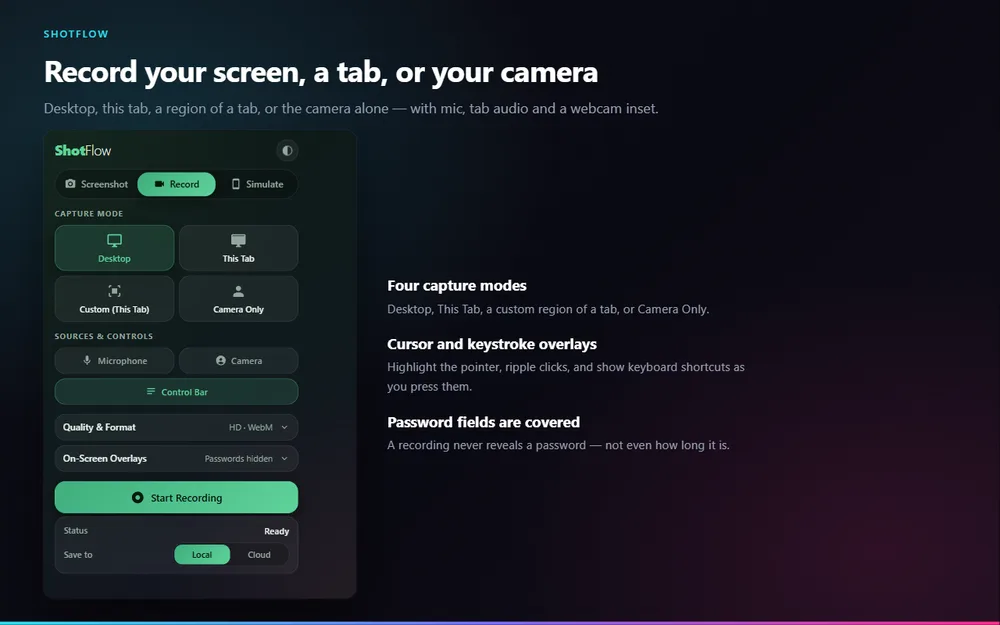
The mode tabs at the top of the popup switch between Screenshot, Record and Simulate.
Pick what to record
Desktop for a whole screen or window, This Tab for just the page, Custom for a region of the page, or Camera Only for a talking head.
Choose your sources
Toggle the microphone, the tab’s own audio, and a round webcam inset. Tab audio keeps playing for you while it records, which is not the default browser behaviour.
Press Start Recording
A floating control bar appears with pause, stop and the elapsed time. It lives outside the recorded tab, so it never appears in the video.
Stop, then edit or save
The recording opens in the Recording Studio, where you can trim, cut, blur a region, add captions, then export as video or GIF.
What makes it different
No length cap
Record for as long as your disk allows. There is no five-minute limit and no monthly video quota.
No watermark, no account
The exported file is clean and yours. You are never asked to sign in before recording.
Password fields are covered
While you type into a password field it is covered in the recording, so the video never reveals even how long the password is.
Screen recorder, free and without an account
Nothing you capture leaves your browser unless you choose to share it.
Add to ChromeQuestions
How do I record just one Chrome tab?
Open ShotFlow, switch to Record, choose "This Tab", and press Start Recording. Only that tab is captured — other windows and your desktop are not.
Is there a watermark or a time limit?
Neither. The recording is produced in your browser and exported as a normal video file, with no branding added and no cap on length.
Can I record the tab’s audio and still hear it?
Yes. Capturing a tab’s audio normally silences it for you; ShotFlow routes the captured audio back to your speakers so it keeps playing while it records.
Will the recording controls show up in the video?
No. The control bar is a separate floating surface outside the recorded tab, so it is never part of the captured pixels.
Where is the recording saved?
Into a local library in your browser. Nothing is uploaded unless you choose to share that specific file, and any share link expires after 30 days and can be revoked.
Also in ShotFlow
Blur & redact
Hide an email address, a name or an account number in a screenshot or video.
Read more →Device mockups
Drop a capture into a phone, tablet or laptop frame on a chosen backdrop, in flat or isometric perspective.
Read more →Full page screenshot
Capture an entire webpage in Chrome, including everything below the fold, in one image.
Read more →