Put a Screenshot Inside a Phone or Laptop Mockup
Every mockup tool works the same way: take a screenshot, save it as a PNG, go to a website, upload it, position it, download the result. That is four steps and a round trip to somebody else’s server for what should be one action.
How to do it
Open the Simulator and pick a device
Choose from 76 profiles — phones, tablets, laptops, desktops and TVs. The frame matches the real hardware.
Load the page you want to show
The device renders the live page, so what you frame is the real thing rather than a pasted image.
Open Mockup Studio
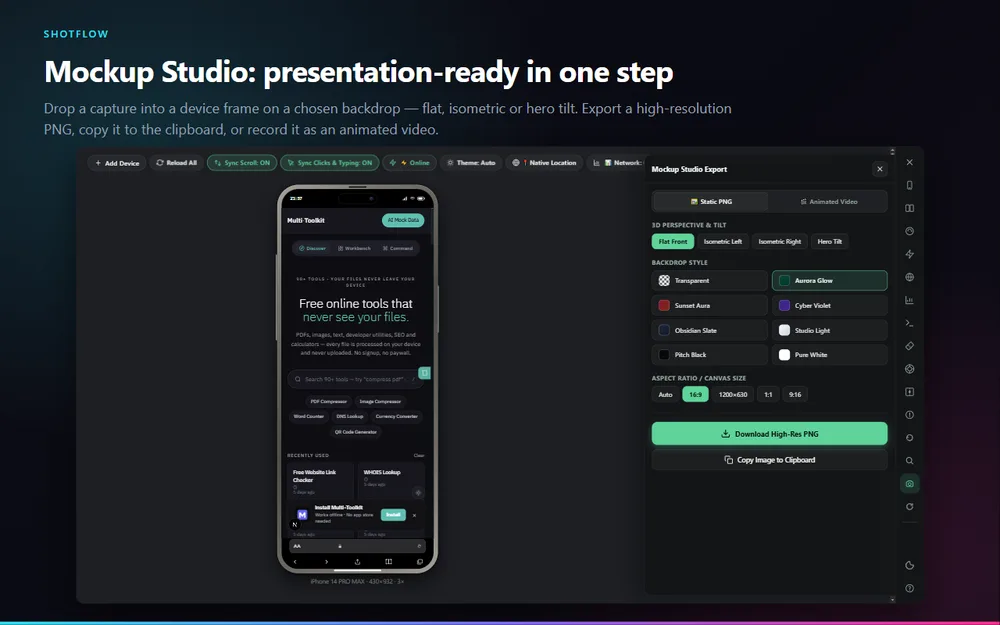
The camera icon in the right-hand rail. Choose a perspective — flat, isometric left or right, or hero tilt.
Choose a backdrop and aspect ratio
Preset backgrounds including fully transparent, and 16:9, 1200×630, 1:1 or 9:16 to match wherever it is going.
Export
Download a high-resolution PNG, copy it straight to the clipboard to paste into Slack or a doc, or record an animated version as video.
What makes it different
No upload round trip
The frame, the backdrop and the export all happen in your browser. Your screenshot is never sent to a mockup service.
Animated exports
Record the mockup as video: a 3D turntable, an automatic page scroll, or a live capture of you using the page.
Transparent backdrops
Export with no background at all, so the framed device drops onto any slide or landing page cleanly.
Device mockups, free and without an account
Nothing you capture leaves your browser unless you choose to share it.
Add to ChromeQuestions
How do I put a screenshot inside a phone mockup?
Open ShotFlow’s Simulator, choose a device, load the page, then open Mockup Studio and export. Because the device renders the live page, you do not need to take a screenshot first at all.
Do I have to upload my screenshot anywhere?
No. This is the main difference from web-based mockup tools — the composition and export happen locally, so the image never leaves your machine.
Can I export with a transparent background?
Yes. Transparent is one of the backdrop presets, so you get a framed device on transparency for dropping onto your own background.
What sizes can I export?
A high-resolution PNG at 16:9, 1200×630, 1:1 or 9:16, or the natural size. 1200×630 is sized for link previews and social cards.
Can I make an animated mockup?
Yes — a 3D turntable that rotates the device, an automatic scroll through the page inside the frame, or a live recording of the framed device as you use it.
Also in ShotFlow
Responsive tester
Preview any page across 76 device profiles in frames that look like the real hardware.
Read more →Full page screenshot
Capture an entire webpage in Chrome, including everything below the fold, in one image.
Read more →Screen recorder
Record your desktop, a single Chrome tab, a region of a tab, or your camera.
Read more →