chrome://flags, relaunch, then trigger the one-time ~2 GB model download by running await LanguageModel.availability() in DevTools. Once it returns "available", every AI tool on this site (and any site using the Prompt API) works instantly — nothing you type or upload ever leaves your device.Our AI Text Summarizer, AI Translator, AI Email Writer, AI Grammar Checker, and AI PDF Summarizer all run on Chrome's built-in AI by default. If one of them told you it "needs Chrome's built-in AI", this guide is the fastest way to actually turn it on — the real steps, as they work today.
What Chrome's built-in AI actually is
Chrome bundles a small, efficient language model — Gemini Nano — that runs locally on your machine through the browser's Prompt API. There is no account, no API key, and no server call for the AI itself: your text, file contents, or prompt are processed entirely on your device and never uploaded anywhere. This is what powers every AI tool on Multi-Toolkit whenever your browser supports it, and it is why those tools can genuinely claim to be private.
What you need before you start
- Chrome 128 or newer on desktop — Windows, macOS, or Linux. Chrome for Android and iOS does not currently support this.
- ~22 GB of free disk space (the model and its supporting files need room, even though the download itself is smaller).
- A GPU with at least 4 GB of VRAM. Devices without a capable GPU cannot run the model locally.
- An unmetered network connection for the one-time ~2 GB model download — avoid doing this on mobile data or a capped connection.
If your device does not meet these requirements, you are not stuck — every AI tool on this site has a built-in Cloudflare Worker AI fallback setting you can configure instead, which routes requests to a hosted model rather than running one locally.
Step 1 — enable the two Chrome flags
Open two flag pages in Chrome and change their settings:
- Go to chrome://flags/#optimization-guide-on-device-model and set it to "Enabled BypassPerfRequirement". This tells Chrome to download the on-device model even if it thinks your hardware is borderline.
- Go to chrome://flags/#prompt-api-for-gemini-nano and set it to "Enabled". This turns on the JavaScript API that websites (and our tools) use to talk to the model.
- Click Relaunch when Chrome prompts you, or restart the browser manually.
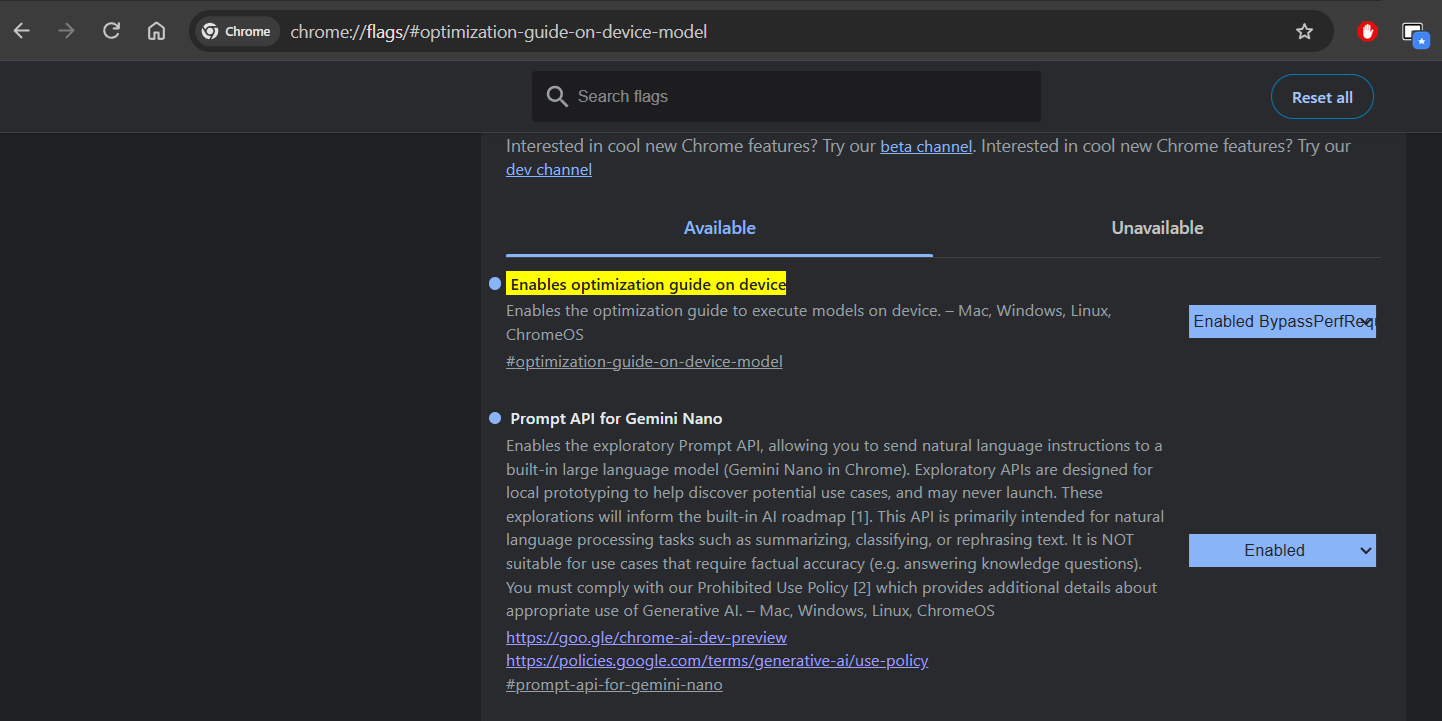
chrome://flags: the Optimization Guide flag on "Enabled BypassPerfRequirement" and the Prompt API for Gemini Nano on "Enabled".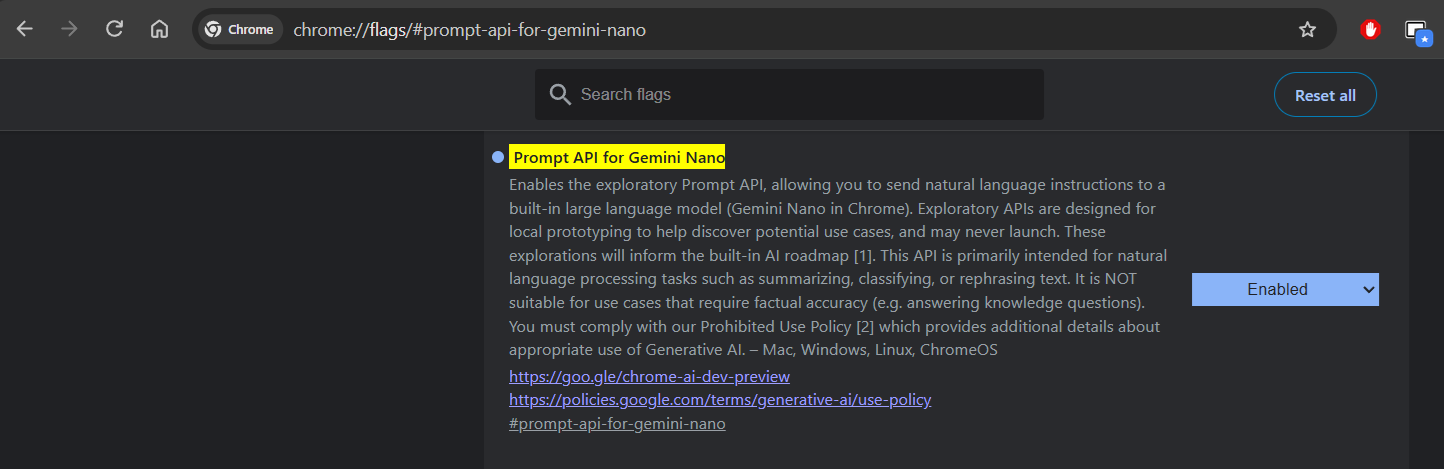
Step 2 — trigger the model download
Flipping the flags does not download anything by itself — there is no button for that. The model downloads the first time an API actually asks for it. The simplest way to trigger that is from DevTools:
- Open any webpage, then open DevTools with F12 (or Ctrl+Shift+I).
- Click the Console tab.
- Run:
await LanguageModel.availability() - If it returns
"downloadable", start the download and watch its progress with:await LanguageModel.create({ monitor(m) { m.addEventListener('downloadprogress', e => { console.log(Math.round(e.loaded * 100) + '%'); }); }, });
Let this finish — the download is roughly 2 GB, so it can take a few minutes depending on your connection. Once it completes, open chrome://components and look for "Optimization Guide On Device Model". It will now show a real version number instead of being absent. This entry only appears after the first API call — it is normal for it to be missing before this step.
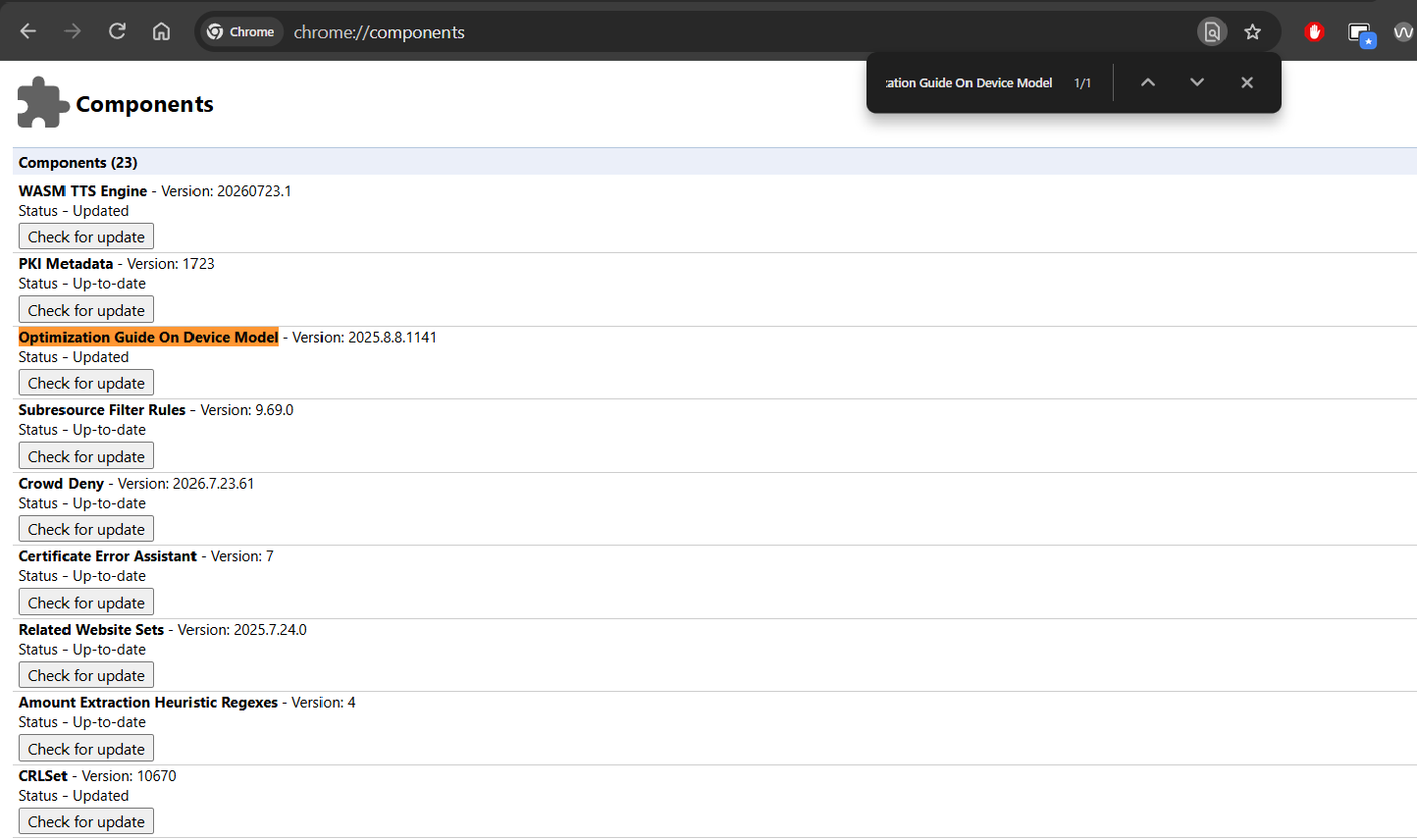
chrome://components, "Optimization Guide On Device Model" now shows a version and Updated — the model has downloaded and is ready.Step 3 — verify it is ready
Back in the DevTools console, run the availability check again:
await LanguageModel.availability()Once it returns "available", you are done. Refresh any AI tool on this site — the Text Summarizer, Translator, Email Writer, Grammar Checker, or PDF Summarizer — and it will pick up the on-device model automatically, with no further setup.
Troubleshooting
"window.ai is undefined" in the console. That is expected on current Chrome versions — the API moved. It is no longer window.ai.languageModel; it is now the top-level LanguageModel global. Use LanguageModel.availability() instead of anything referencing window.ai.
Availability returns "unavailable". Your device does not meet the hardware bar — not enough VRAM, not enough free disk space, or Chrome is older than 128. Rather than trying to force it, use the Cloudflare Worker AI fallback setting built into each tool's AI Settings panel — it routes the same request to a hosted model instead.
The model never shows up in chrome://components. That entry is populated only after the first API call asks for the model — checking chrome://components before running LanguageModel.availability() or .create() will show nothing, even with both flags enabled correctly.
Privacy — why this is worth the two-minute setup
Once Gemini Nano is running, everything you type, paste, or upload into a compatible tool is processed locally, inside your browser, on your own hardware. Nothing is sent to a server to generate the result. That is a meaningfully different privacy story than pasting the same text into a cloud-based AI tool — there is no upload, no request log, and no third party handling your content for the AI step itself.
Once set up, put it to work: try the AI Text Summarizer, AI Translator, AI Email Writer, AI Grammar Checker, or the AI PDF Summarizer — all free, all processed on your device.
Try an AI tool free →Related tools: AI Text Summarizer · AI Translator · AI Email Writer · AI Grammar Checker · AI PDF Summarizer