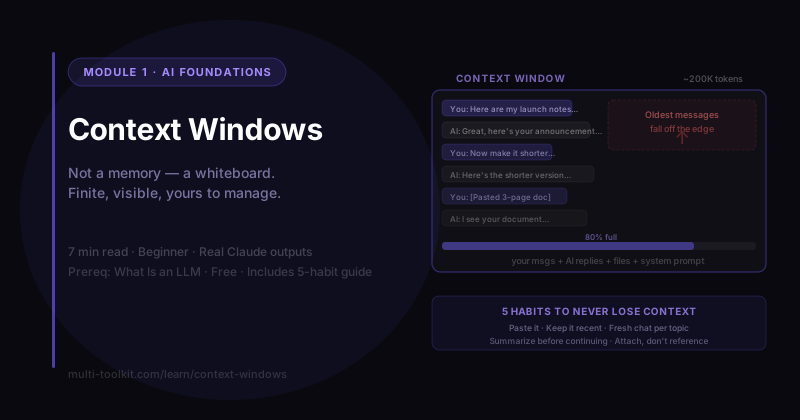
You'll learn: what a context window is, why AI "forgets" things in long chats, and the habits that keep it on track. You'll walk away with: the Context Window Survival Guide — what counts toward the window + 5 habits to never lose context. Level: Beginner · Prereq: What Is an LLM
The examples below are real Claude (Sonnet 4.6) responses from June 2026.
1. The Problem
You're deep in a long chat and the AI suddenly "forgets" something you told it at the start. Or you paste a huge document and it gets sluggish or misses things. People assume the AI is being dumb. It isn't — it hit the edge of its window.
The fix isn't a trick. It's understanding the single most useful concept for working with AI day to day: the context window.
2. The Idea: A Whiteboard, Not a Memory
From the pillar lesson, the model has no real memory — it works only with the text in front of it right now. That "right now" has a name and a size. Here's how Claude itself put it:
"Think of my memory like a whiteboard — everything in our conversation gets written on it, but the whiteboard has a fixed size. That's the context window."
Everything lives on that whiteboard: your messages, the AI's replies, any files you've shared, and its background instructions. That's all it can see for this conversation. Nothing else exists to it.
3. It Uses Everything On the Whiteboard
To show the window is the working memory, I pasted some notes and asked it to use them:
- Launch date: October 14
- Product: Brew Lab Cold Brew Kit
- Budget: $5,000
- Brand color: teal
Write a one-sentence announcement, and tell me the budget.
"We're excited to launch the Brew Lab Cold Brew Kit on October 14! The budget is $5,000."
Perfect recall — because it was all on the whiteboard. Anything you put in the window, the AI can use. (This is the entire foundation of prompting: put the right stuff in the window.)
🔑 The conversation is the AI's working memory. What's in the window, it can use.
4. The Window Is Big — But Finite (Tokens)
How big is the whiteboard? I asked, and the answer introduces the one unit worth knowing — tokens:
"Tokens are the small chunks I read in… roughly ¾ of a word. A page of text is around 500–750 tokens. For me (Claude Sonnet 4.6), the context window is around 200,000 tokens — roughly 150,000 words, about two full novels."
So the window is huge — but finite. And here's the part that explains the "forgetting":
"Once it fills up, something has to fall off the edge. Older parts of the conversation get dropped from what I can see, so I may forget things said early on… responses can start to feel less coherent."
That's it. The AI didn't get dumber — your earliest messages fell off the whiteboard to make room.
🔑 The window is measured in tokens (~¾ word each) and it's finite. When it fills, the oldest content falls off first. (Sizes change with every model — Sonnet 4.6 was ~200K tokens in June 2026. Check your tool's current limit.)
5. If It's Not On the Whiteboard, It Doesn't Exist
The flip side: the AI can't use anything that isn't in the window. I asked it to summarize a PDF I never uploaded:
"I don't see any PDF uploaded… the search didn't turn up a file attachment… Could you share the PDF here?"
It even searched my other chats (an app feature) and still found nothing — because there was nothing. The lesson: don't reference things you haven't actually put in the window. "The document I mentioned," "what we discussed before" — if it's not on the whiteboard (or in a memory feature), it's invisible. Paste it.
🔑 Not in the window = invisible. Give the AI the actual text/file — don't just refer to it.
6. What Counts Toward the Window
Everything in the conversation shares the whiteboard:
- Every message — yours and the AI's (replies count too)
- Files and documents you upload or paste
- Background/system instructions and any injected memory
Long replies, big pastes, and long histories all eat the same space.
7. The 5 Habits (so you never lose context)
- Put the relevant info in the window. Paste the email, the data, the doc — don't make it guess.
- Keep key details recent. In a long chat, restate the critical facts near your latest message so they don't get buried.
- Start a fresh chat per topic. New task = new whiteboard. Cleaner, faster, no stale context.
- Summarize before continuing. When a thread gets long, ask for a summary, then start fresh with that summary.
- Attach the source, don't reference it. "Summarize this [pasted]" beats "summarize the thing I mentioned."
8. Common Mistakes
| Mistake | Fix |
|---|---|
| Blaming the AI for "forgetting" | It hit the window edge — restate key facts or start fresh |
| One endless mega-chat for everything | One chat per topic; fresh whiteboard each time |
| Referencing a file/chat you never pasted here | Put the actual text in the window |
| Burying the key instruction at the very top of a long thread | Repeat it near your latest message |
| Assuming a bigger window means "never forgets" | Even huge windows fill; recency and relevance still matter |
9. Your Takeaway
The AI works on a finite whiteboard — the context window. It can use anything on it (your messages, files, its replies), it forgets the oldest content when it fills, and it can't use anything you didn't actually put there. Manage the whiteboard and the AI stops "forgetting."
📥 Download the Context Window Survival Guide (free) — what counts toward the window + the 5 habits. (Email opt-in.)
10. Your Challenge
Do this now: start a fresh chat, paste a short document or set of notes, and ask a question that requires details from it. Then open a different fresh chat and ask the same question without pasting the notes. Watch the difference.
You did it right if: you can explain why the second chat couldn't answer — and you can name one habit you'll adopt for long conversations.
Keep going: ← Pillar: What Is an LLM · Siblings: AI Hallucinations · AI Memory & Projects · Then: Context Prompting →