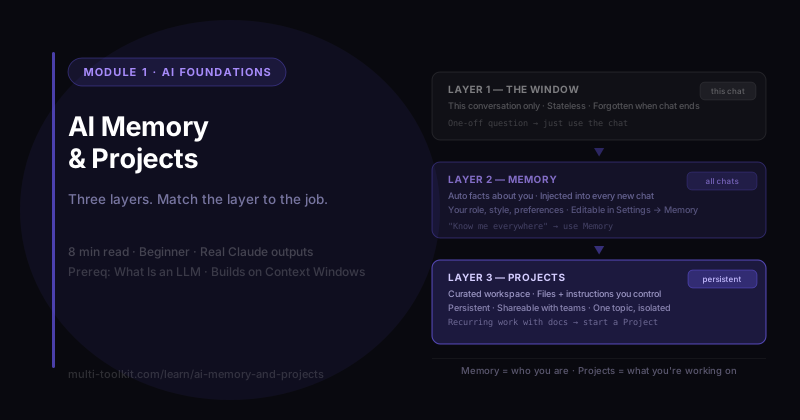
You'll learn: the three ways AI "remembers" — the chat window, the memory feature, and Projects — and which to use for one-off chats vs ongoing work. You'll walk away with: the AI Memory Playbook — what each layer does + a decision guide. Level: Beginner · Prereq: What Is an LLM · Builds on Context Windows
The explanations below are real Claude (Sonnet 4.6) responses from June 2026. (Personal details from the live answers have been replaced with a fictional brand, "Brew Lab.")
1. The Problem
AI memory is confusing because it seems contradictory. In one chat, the AI knows your name, your work, your preferences — spooky. In another, it acts like you've never met. Did it remember you or not?
Both are true — because "remembering" isn't one thing. It's three different systems, and once you know which is which, you can make AI reliably know what you want it to know.
2. Recap: The Model Itself Has No Memory
From the pillar: the raw model is stateless — it remembers nothing between sessions. So every kind of "memory" you experience is a layer built around the model. There are three:
| Layer | What it is | Lasts |
|---|---|---|
| The window | The current conversation (covered in Context Windows) | This chat only |
| Memory | Auto-saved facts about you, injected into every chat | Across all chats |
| Projects | A curated workspace with docs + instructions for one topic | Inside that Project |
3. Layer 2 — The Memory Feature (who you are)
I asked Claude how it remembers me between conversations. Its description is the clearest I've seen:
"After conversations, Claude.ai automatically generates a summary of potentially useful context — your work setup, recurring projects, preferences, tools. It's not a transcript — it's more like notes a colleague might jot down so they don't make you re-explain everything next time."
So if you tell it you run Brew Lab, a specialty coffee brand, and prefer concise answers, that gets saved as a note and quietly added to the start of your next chat — which is why it suddenly "knows you."
Crucially, you're in control:
"View memories: Settings → Memory. Edit or delete specific entries. Turn it off entirely with a toggle. Use Incognito mode — conversations there don't read from or write to memory. You can also just tell me: 'forget that…' or 'don't remember this conversation.'"
🔑 Memory = automatic notes about you, added to every chat. You can view, edit, delete, or switch it off.
4. Layer 3 — Projects (what you're working on)
Memory is broad and automatic. Projects are the opposite — deliberate and scoped. Here's how Claude drew the line:
"Projects are scoped workspaces for a specific body of work. You upload documents, code, reference material, or instructions, and every conversation inside that Project has access to that shared context."
The differences that matter:
- You control what's in it — you add the files and instructions. It's curated, not inferred.
- Persistent and structured — your docs stay there, always available (not summarized/approximated like memory).
- Shareable — on Team/Enterprise plans, a whole team gets the same context.
- Isolated — Project chats don't bleed into your general memory or other Projects.
So a Brew Lab Project might hold your brand-voice guidelines, product list, and past campaigns — and every chat inside it writes in your voice with those facts on hand, no re-pasting.
🔑 A Project = a curated, persistent workspace for one body of work — files + instructions you control.
5. Memory vs Projects — When to Use Each
Claude's own summary nails the split:
"Use memory for things that are true about you across all work — your role, your timezone, your preferred style. Use a Project when you have a defined body of work with its own reference material… Memory can't hold documents, can't be shared, and you can't verify exactly what it contains. A Project gives you a stable, auditable, team-accessible knowledge base."
| Memory | Projects | |
|---|---|---|
| What | Facts about you | A workspace for a topic |
| How it's filled | Automatically (inferred) | By you (curated) |
| Holds documents? | No | Yes |
| Shareable with a team? | No | Yes (Team/Enterprise) |
| Best for | Personal continuity everywhere | Ongoing work with its own materials |
Memory = who you are. Projects = what you're working on.
6. Your Decision Guide
One-off question?               → Just use the chat (the window). Don't overthink it.
Want AI to "know you" everywhere? → Memory. Tell it the facts once; check Settings → Memory.
A recurring body of work with files? → Start a Project. Load the docs + instructions once.
7. Common Mistakes
| Mistake | Fix |
|---|---|
| Re-explaining who you are every chat | Let memory hold the basics (or tell it to remember) |
| Trusting memory to hold a document | Memory can't store files — use a Project |
| Dumping project files into general chat every time | Create a Project; load them once |
| Worrying what it "knows" about you | Open Settings → Memory and view/edit/delete |
| Discussing something private with memory on | Use Incognito, or say "don't remember this" |
8. Your Takeaway
The model remembers nothing on its own. Continuity comes from three layers: the window (this chat), memory (auto facts about you, everywhere), and Projects (a curated, persistent workspace for one topic). Match the layer to the job — and you control all of it.
📥 Download the AI Memory Playbook (free) — the 3 layers, how to control memory, and the decision guide. (Email opt-in.)
9. Your Challenge
Do this now:
- Open Settings → Memory and read what your AI has saved about you. Edit or delete anything off.
- Think of one recurring task with its own files (a brand, a course, a codebase). That's your first Project — we'll build it hands-on in Module 2.
You did it right if: you can say which of the three layers you'd use for (a) a quick question, (b) "always answer in my style," and (c) ongoing work on one project.
Keep going: ← Pillar: What Is an LLM · Siblings: AI Hallucinations · Context Windows · Next module → Set up your first Claude Project (hands-on)