You have a 2,000-word article, a dense email thread, or a report you need the gist of in the next 30 seconds. Reading the whole thing is not always an option. This guide covers how AI summarization actually works, when it is genuinely useful, and how to do it for free without sending your text anywhere.
What an AI text summarizer actually does
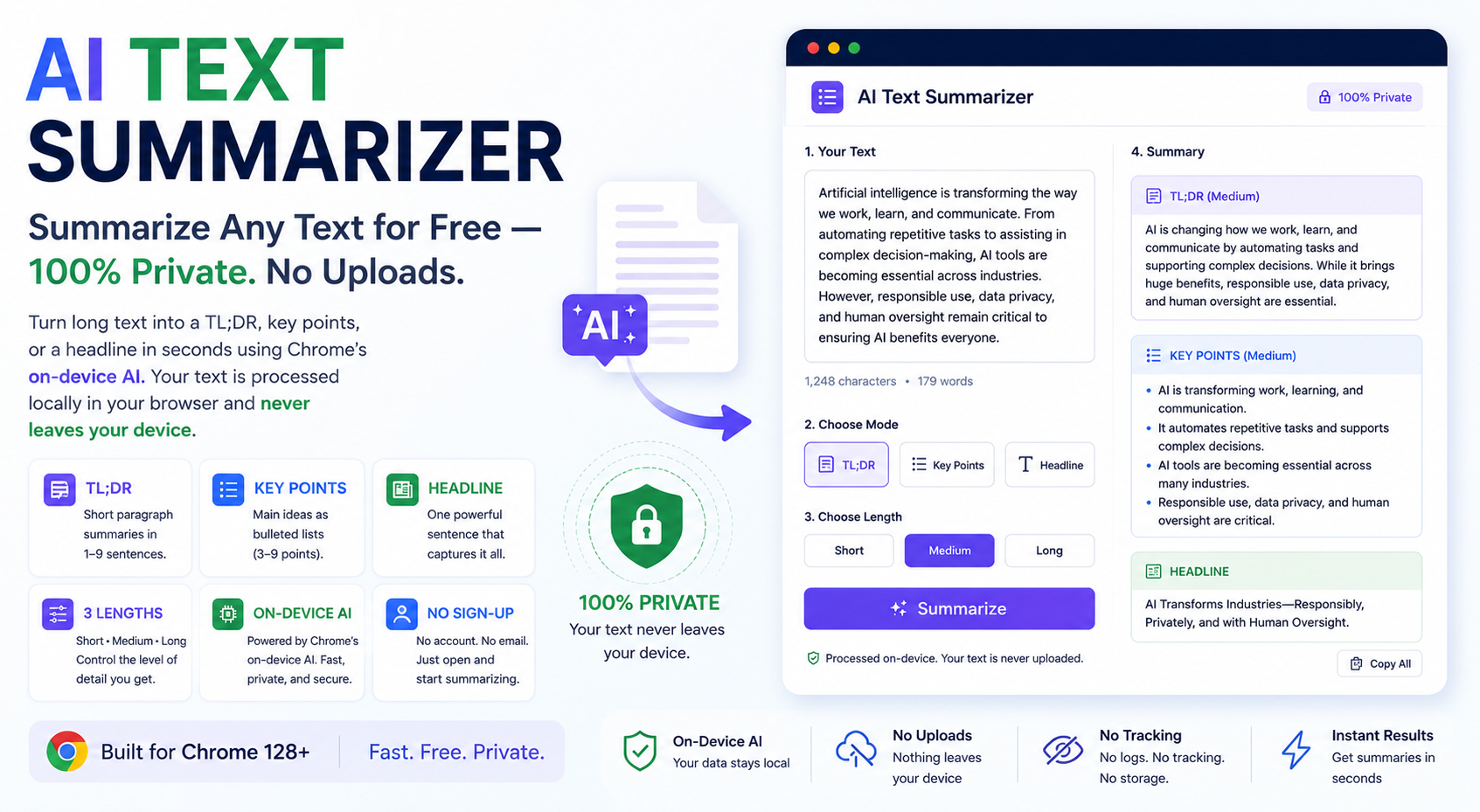
A summarizer reads a block of text and produces a shorter version that preserves the meaning. The Multi-Toolkit summarizer gives you three output styles:
- TL;DR — a short paragraph summary, adjustable from 1-2 sentences (short) up to 6-9 sentences (long) that preserve more context.
- Key Points — the main ideas as a bulleted list, typically 3-9 bullets depending on the length you choose.
- Headline — one attention-grabbing sentence, similar to a news headline, for when you need the single-line version.
Under the hood it is not keyword extraction or sentence-truncation the way old-school summarizers worked. It is a language model reading the full text and generating new, coherent sentences that capture what matters.
Why on-device AI means real privacy
Most "AI summarizer" tools online work the same way: you paste your text, it gets sent to a company's server, an API call runs against a hosted model, and the summary comes back. Your text — which might be a client contract, personal correspondence, or unpublished writing — passes through a third party's infrastructure and may be logged.
Chrome's built-in AI (available in Chrome 128 and newer, part of Chrome's on-device AI initiative) runs a language model locally, inside the browser, on your own device. When you use the AI Text Summarizer, your pasted text is handed directly to that local model — it never travels over the network to summarize it. There is no server call to intercept, no request log, and no third party in the loop for the summarization step itself.
The tool also supports an optional Cloudflare Worker AI fallback for browsers that do not yet support on-device AI. If you configure your own Worker endpoint, be aware that path does involve a network request — the on-device path is the fully private one, and it is what runs automatically whenever your browser supports it.
How to summarize text online (step by step)
- Open the AI Text Summarizer in Chrome 128 or newer.
- Paste or type the text you want summarized into the input box.
- Choose a mode — TL;DR, Key Points, or Headline.
- Pick a length — Short, Medium, or Long — to control how detailed the summary is.
- Click Summarize. The result streams in a few seconds, processed entirely on your device.
- Copy the summary, or clear the input and paste something new.
If your browser does not yet have built-in AI enabled, the tool will tell you and point you to the Chrome flag that turns it on, or let you configure a fallback endpoint.
Practical use cases
- Students condensing a research paper or long chapter into key points before a study session.
- Bloggers and marketers turning a long draft into a punchy headline or a meta-description-length TL;DR.
- Anyone with a long email thread who wants the three-sentence version before a meeting.
- Content curators generating quick bullet summaries of articles for a newsletter roundup.
Tips for better summaries
- Give it clean text. Strip navigation menus, ads, and boilerplate before pasting — the model summarizes what you give it, junk in means junk out.
- Match the length to the source. A 200-word email rarely needs the "Long" setting; save that for genuinely dense material.
- Use Key Points for anything you will act on. A bulleted list is easier to scan for action items than a paragraph.
TL;DR vs. Key Points vs. Headline — which to pick
The three modes are not interchangeable, and picking the right one changes how useful the result is:
- TL;DR is best when the summary needs to stand on its own as readable prose — for example, a short recap you paste into a message to a colleague who has not read the source material.
- Key Points is best when you plan to act on the content — meeting notes, research takeaways, or anything you will scan quickly and reference again later. Bullets are easier to re-scan than a paragraph.
- Headline is best for the narrowest use case: distilling an entire piece down to a single sentence, useful for titling a saved note, a Slack message subject, or judging at a glance whether a long article is worth reading in full.
How this compares to manual skimming
Skimming — reading the first and last sentence of each paragraph — is the traditional way to get through a long document quickly, and it works reasonably well for text that is already well-structured. The problem is that most real-world text is not: emails ramble, reports bury the conclusion in paragraph six, and articles pad their point with anecdotes. An AI summarizer reads the entire input, not just the topic sentences, so it tends to catch details that manual skimming misses — a caveat buried mid-paragraph, a number that only appears once, or a conclusion that contradicts the introduction.
That said, a summary is still a compression of the original — for anything where the exact wording matters (a legal clause, a precise figure you will quote elsewhere), always verify against the source text rather than relying on the summary alone.
Frequently asked questions
Is there a word limit? The summarizer works best on text that fits comfortably in a single pass — for very long documents (like full PDFs), use the AI PDF Summarizer instead, which extracts and chunks pages first.
Do I need to sign up? No account, no email, no payment — it is free to use directly in the browser.
Does it work offline? Once Chrome's on-device model is downloaded and ready, summarization can run without an active internet connection.
Will it change my meaning? A good summarizer compresses, it does not editorialize — but any summary is, by definition, a lossy version of the original. Treat it as a fast first pass, not a replacement for reading anything you need to act on precisely.
Summarize text free →Related tools: AI PDF Summarizer · Word Counter · Text Laboratory