PDFs are where long, important documents go to be avoided — contracts, research papers, financial reports, board decks exported to PDF "for safekeeping." Reading all of it is not always realistic. Here is how to get an accurate summary without uploading the file to a third-party service.
What the AI PDF Summarizer does
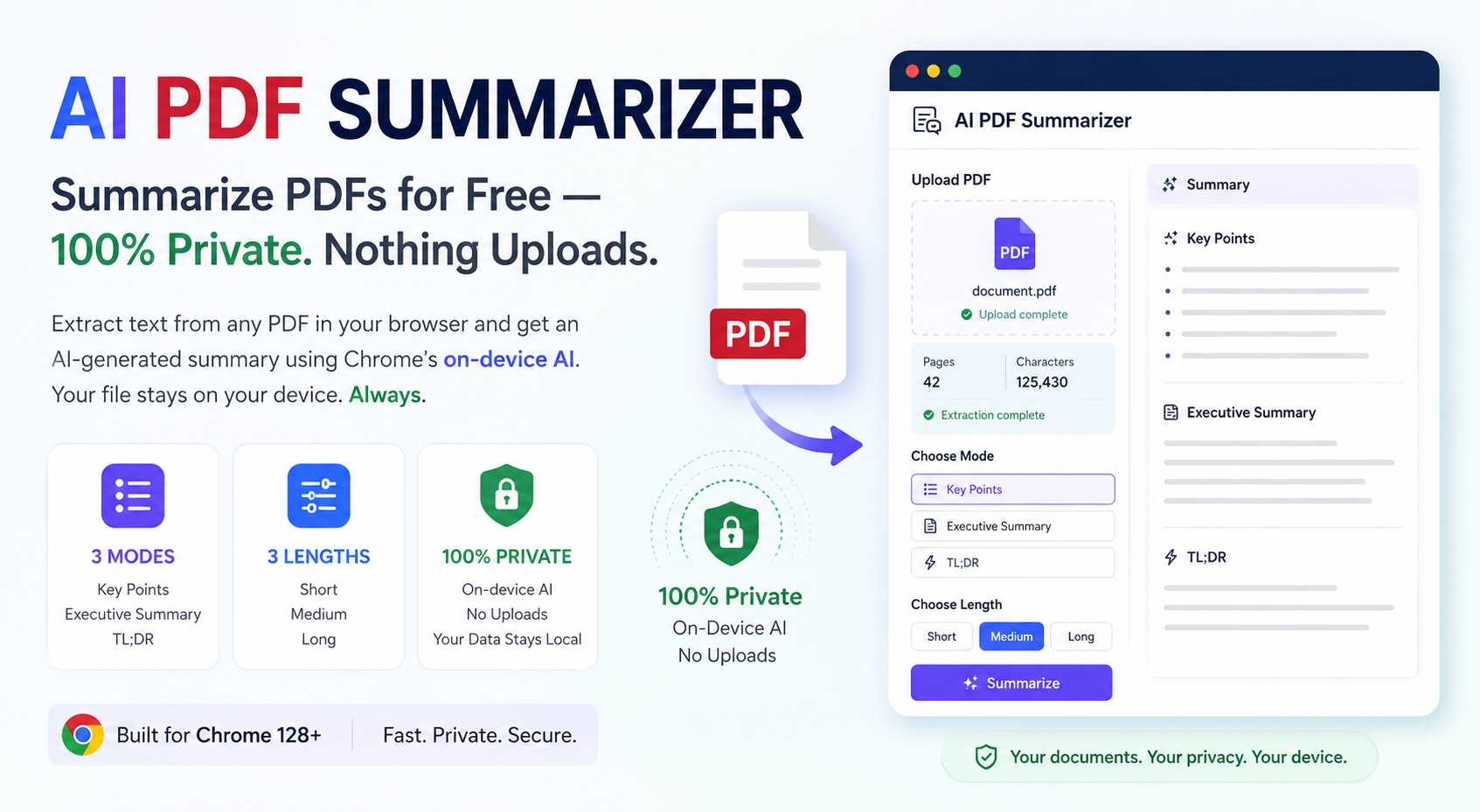
Upload a PDF and the tool extracts its text locally in the browser, then summarizes it in one of three modes:
- Key Points — the main ideas as a bulleted list (3-9 bullets depending on length chosen).
- Executive Summary — a structured summary covering the purpose, key findings, and any conclusions or recommendations, written like a business analyst's brief.
- TL;DR — a clear, concise plain-language summary of the whole document.
You also choose a length (short, medium, or long) to control how much detail comes back, and the tool shows you the page count and character count it extracted, so you can see exactly how much of the document it is working from.
Why the file never leaves your device
Most online "PDF summarizer" services work by having you upload the file to their server, where it is parsed and processed. For a signed contract, a medical report, or unreleased research, that upload step alone can be a dealbreaker.
The AI PDF Summarizer extracts text from the PDF directly in your browser — the file is read locally, and the extracted text is handed to Chrome's built-in, on-device AI (Chrome 128+) to generate the summary. There is no upload of the PDF itself to a server for either the extraction or the summarization step.
For very large PDFs, the extracted text may be truncated to fit what the on-device model can process in one pass — the tool will tell you if truncation happened, so you know the summary reflects the first portion of a very long document rather than the whole thing.
How to summarize a PDF (step by step)
- Open the AI PDF Summarizer in Chrome 128 or newer.
- Upload your PDF file. The tool extracts the text locally and shows the page count and character count.
- Choose a mode — Key Points, Executive Summary, or TL;DR.
- Pick a length — short, medium, or long.
- Click Summarize. The result is generated on-device in a few seconds.
- Copy the summary for your notes, a report, or to share separately from the original file.
Practical use cases
- Students getting the key points of a research paper before deciding whether to read it in full.
- Marketers and bloggers summarizing a long whitepaper or report into shareable bullet points.
- Professionals generating an executive summary of a contract or proposal before a meeting.
- Anyone with a stack of PDFs and limited time to review them all in full.
Reading the extraction stats before you summarize
Once a PDF is uploaded, the tool shows you the page count and the number of characters it extracted before you even click Summarize. This is worth glancing at: if a 40-page document shows a suspiciously low character count, it is a sign the PDF is mostly scanned images rather than selectable text, and the summary will be based on very little actual content. Checking this up front saves you from summarizing what is effectively a blank document.
PDF summarizing vs. reading the abstract or conclusion
For academic papers and formal reports, the abstract or executive summary section is often already a human-written summary — reading that first is always worthwhile. Where an AI summary adds value is everywhere else: contracts and terms of service rarely have an abstract, internal reports are not always well-structured, and long email threads exported to PDF have no summary section at all. In those cases, generating one yourself, privately, is the faster path to understanding what you are looking at before deciding whether a full read is warranted.
Tips and FAQ
- Use Executive Summary for anything business-related — it explicitly covers purpose, findings, and recommendations, which reads better in a professional context than plain bullets.
- Scanned PDFs (images of text) may extract poorly since the tool reads embedded text, not images — if extraction looks empty or garbled, the PDF is likely a scan without a text layer.
- Start with Key Points for a first pass, then re-run with Executive Summary if you need the fuller structured version for notes or a report.
Is my PDF uploaded anywhere? No — text extraction and summarization both happen locally in your browser.
What if my PDF is huge? Very long documents may be truncated to the portion the on-device model can process in one pass; the tool will indicate if this happened.
What if the PDF is password-protected? You will need to remove the password first (using a trusted local tool) since the summarizer reads the extracted text directly and cannot process an encrypted file.
Summarize a PDF free →Related tools: AI Text Summarizer · PDF Laboratory · PDF Compressor