pdfjs-dist and HTML5 Canvas—allowing you to render PDF pages into crisp JPG or lossless PNG images up to 4× scale (288+ DPI) with 1-click batch ZIP downloads, zero server uploads, and complete privacy.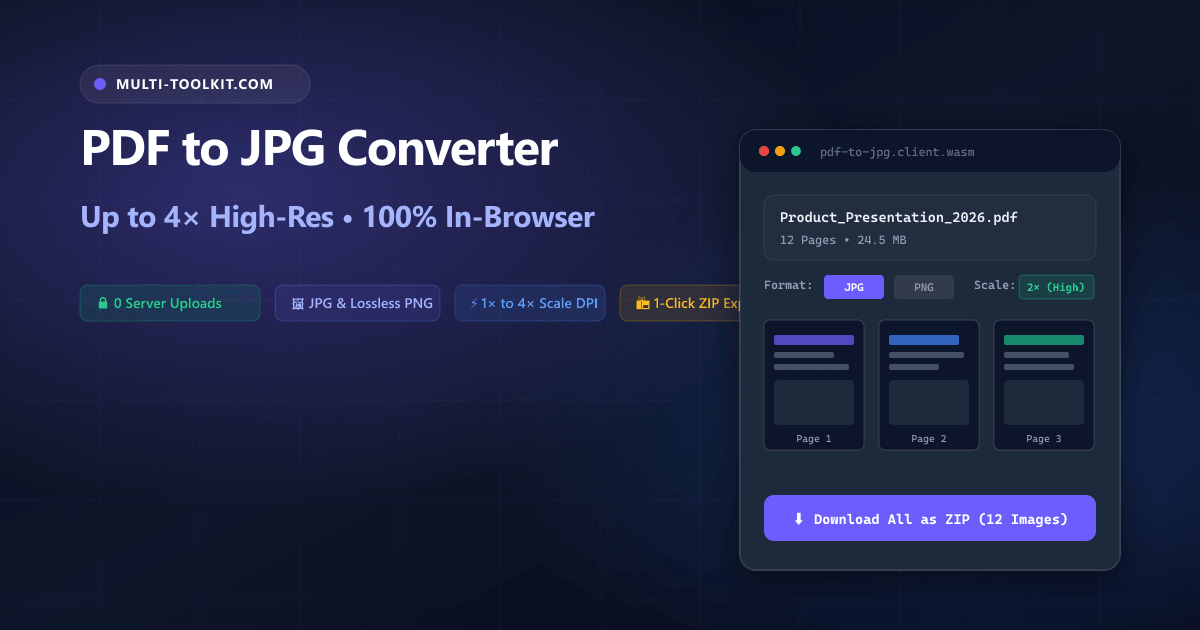
Stop uploading confidential PDFs to cloud converters: convert PDF pages to ultra-high-resolution JPG and lossless PNG images up to 4× scale directly inside your browser with zero limits.
Whether you are turning PDF keynote slides into a LinkedIn carousel, extracting high-resolution diagrams from a scientific paper, embedding an official certificate into a portfolio, or converting invoice receipts for expense reporting, rasterizing PDF pages into images is an essential daily workflow.
However, searching Google for a convert pdf to jpg online free no upload tool routinely lands users on legacy cloud converters that transfer raw documents to remote servers. Unsuspecting professionals frequently upload proprietary product roadmaps, executive compensation audits, and patient medical files to unvetted cloud infrastructure.
Furthermore, these cloud converters artificially degrade free exports to a blurry 72 DPI while locking crisp 300 DPI high-resolution downloads behind $9 to $15 monthly subscriptions.
To eliminate these security risks and resolution paywalls, the Multi-Toolkit PDF to JPG Converter provides an open, private, and client-side pdf to png converter high resolution. All vector path rasterization, font glyph anti-aliasing, and image encoding happen directly in your browser’s GPU and CPU memory without transmitting a single byte over the internet.
The cloud converter trap: why uploading PDFs to extract images is risky & inefficient
1. Security and NDA liabilities on unpublished assets
Dragging sensitive investor pitch decks, pre-release design drafts, or financial records into third-party web tools uploads your raw intellectual property to multi-tenant cloud storage. Temporary cloud caching creates compliance risks under GDPR, CCPA, and corporate non-disclosure agreements.
2. Blurry 72 DPI free tiers & paywalled high-resolution
Most freemium converters deliberately downsample free output to 72 DPI. When printed or viewed on high-density Retina and 4K displays, vector text appears blurry and pixelated. High-resolution 300 DPI exports are locked behind expensive monthly paywalls.
3. 2-file daily limits & artificial cooldown queues
Commercial cloud converters strictly cap free usage at 2 or 3 files per day, forcing users into 15-minute wait queues or demanding email account registrations.
In-browser architecture: how Multi-Toolkit renders PDF pages locally
Multi-Toolkit moves the entire document parsing, viewport scaling, and canvas rasterization pipeline into client-side JavaScript.
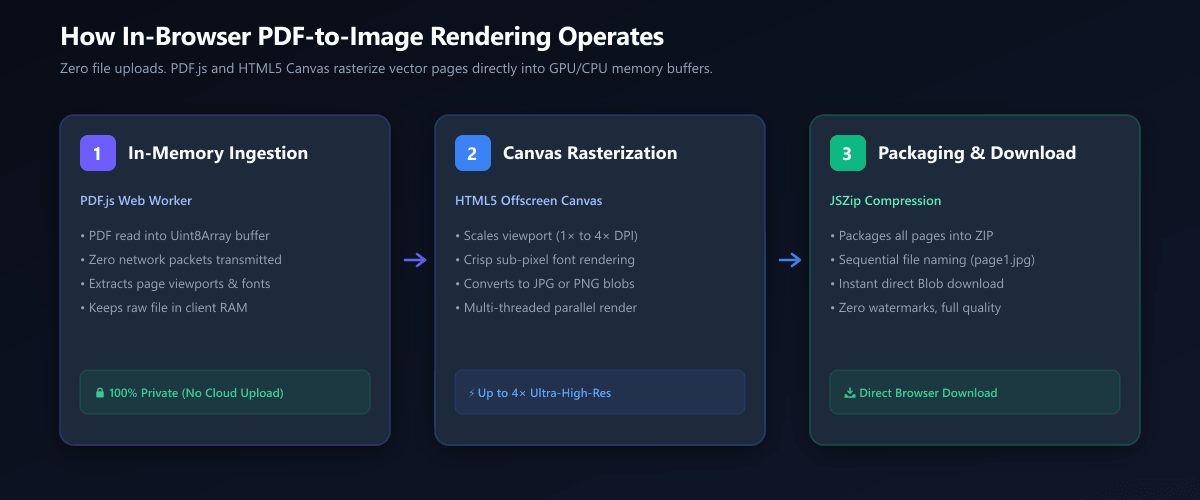
1. Local Ingestion
The PDF is read into browser RAM via the HTML5 FileReader API. Zero network requests are made.
2. Canvas Scaling (1×–4×)
An offscreen HTML5 <canvas> scales native 72 DPI viewports up to 4× for 288+ DPI print fidelity.
3. 1-Click ZIP Packaging
Multi-page batches are packaged into a numbered .zip archive via JSZip in browser memory.
JPG vs. PNG: choosing the right format & resolution scale
| Scale Factor | Effective DPI | A4 Dimensions | Best Used For |
|---|---|---|---|
| 1× (Standard) | ~72 DPI | 595 × 842 px | Web thumbnails, email attachments |
| 2× (High) | ~144 DPI | 1190 × 1684 px | Retina displays, LinkedIn carousels, slides |
| 4× (Ultra / Print) | ~288+ DPI | 2380 × 3368 px | Physical print collateral, posters, publishing |
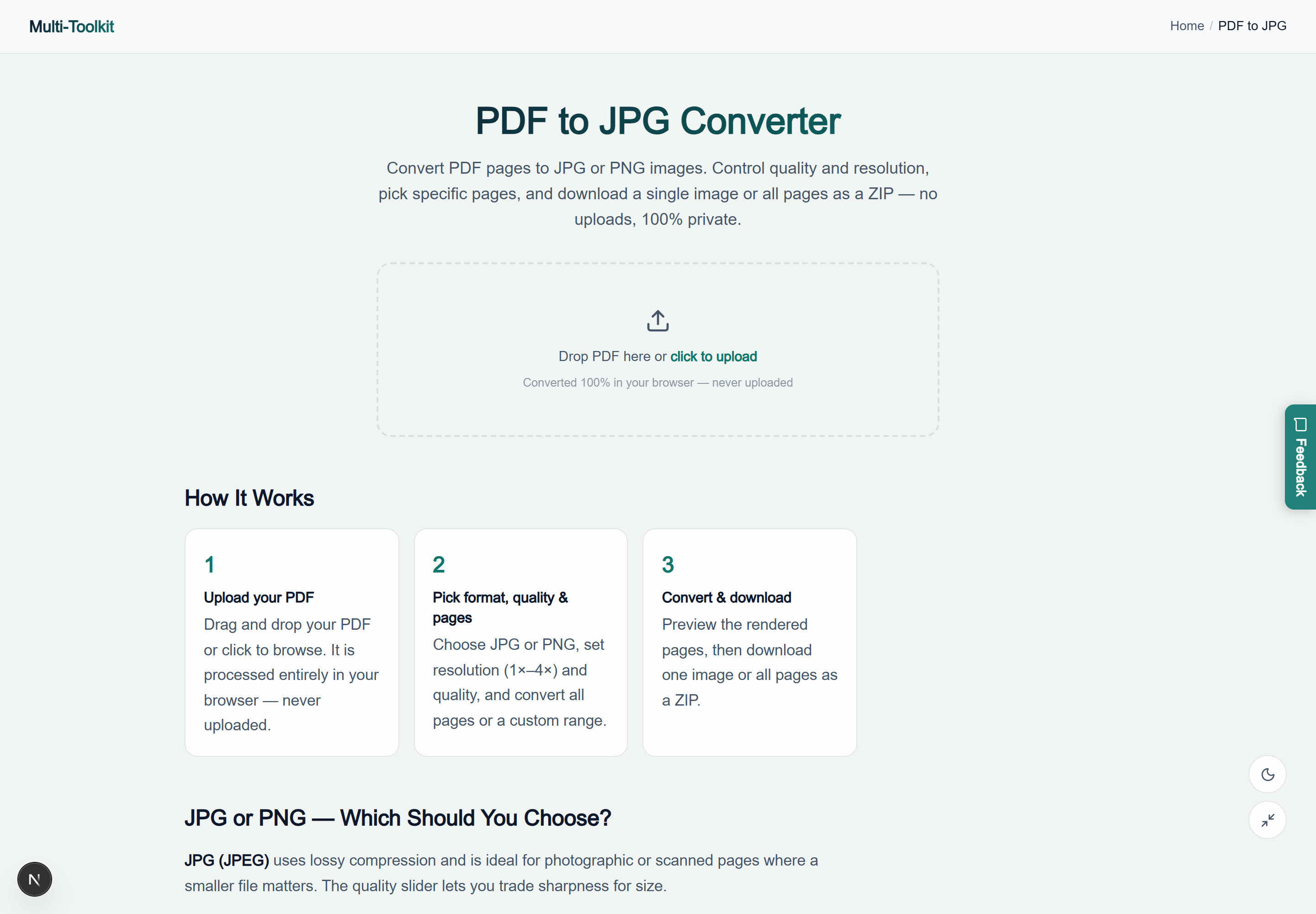
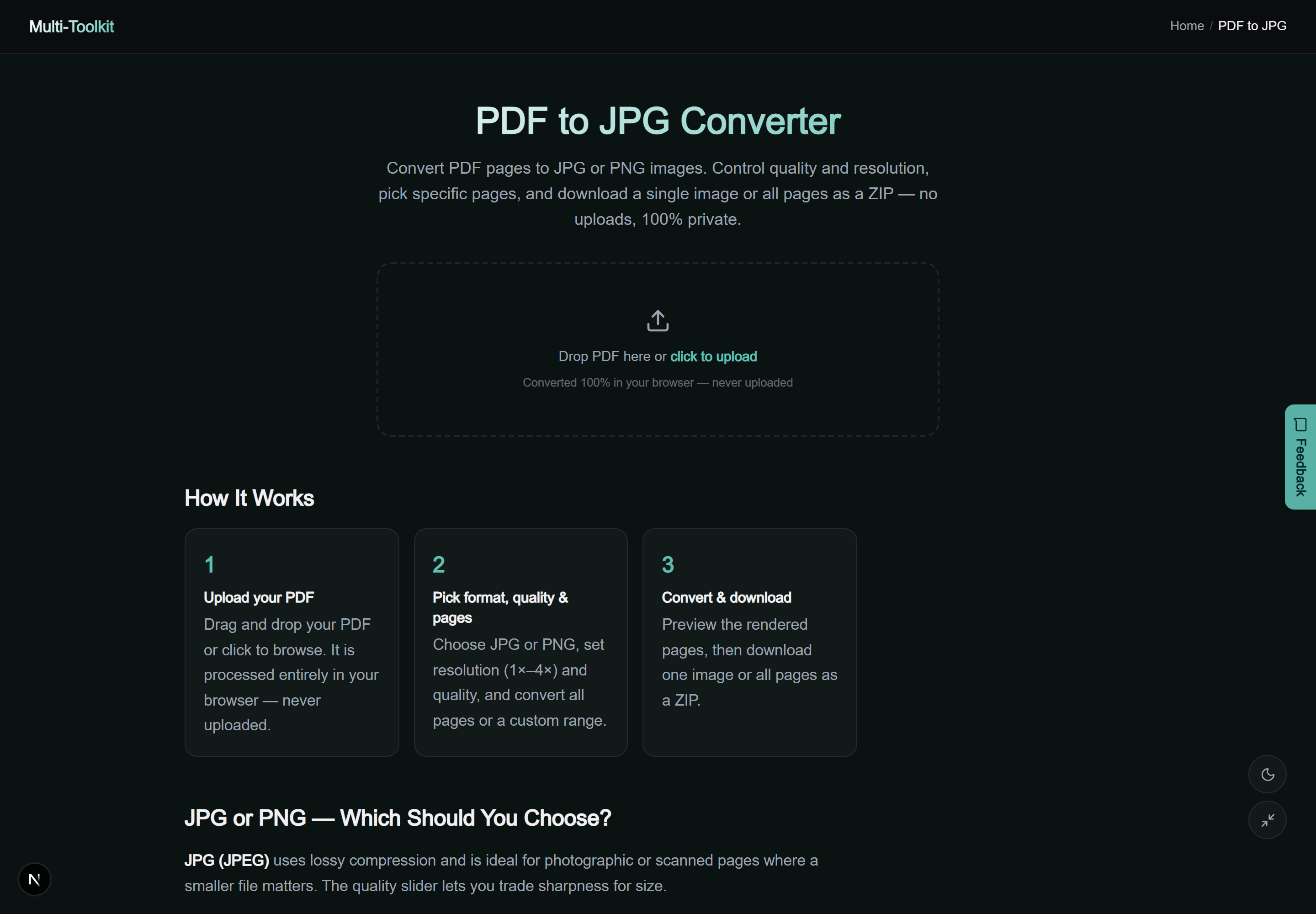
Dual-mode interface preview
Multi-Toolkit provides an intuitive, responsive interface with real-time visual page previews and exact pixel dimensions in both display modes:
Technical math: canvas scaling & DPI transformation
PDF documents represent layout coordinates in Points (where 1 pt = 1/72 inch). An A4 page (8.27 × 11.69 inches) is internally defined as 595 × 842 points.
When rendering at a scale factor of 4×, the offscreen canvas is initialized at 2380 × 3368 pixels. pdfjs-dist executes vector rendering algorithms at four times the base resolution, ensuring that micro-typography, financial tables, and intricate architectural line drawings remain razor-sharp.
Step-by-step: how to convert PDF pages to JPG or PNG
- Open Tool & Load PDF: Open the PDF to JPG Converter and drag your PDF file into the browser.
- Select Format & Quality:
- Choose JPG (with custom quality 50%–100%) for photos and compact web files.
- Choose PNG for lossless vector text clarity and transparent backgrounds.
- Choose Resolution Scale: Select 1× (standard), 2× (Retina/social), or 4× (300+ DPI print quality).
- Convert & Download: Click Convert. Download individual image files or click Download All as ZIP for the full multi-page batch.
Comparative feature matrix: Multi-Toolkit vs. Alternatives
| Feature | Multi-Toolkit | CloudConvert | iLovePDF | Zamzar |
|---|---|---|---|---|
| Pricing | 100% Free Forever | Freemium ($9/mo) | Freemium ($7/mo) | Freemium ($18/mo) |
| Daily File Limit | Unlimited Usage | 25 conversion credits | 2 files / day | 2 files / day |
| Max Resolution | Up to 4× (288+ DPI) | Limited on free | 150 DPI free (300 DPI paid) | 72 DPI only |
| Client-Side Privacy | 0 Bytes Uploaded | Cloud Uploaded | Cloud Uploaded | Cloud Uploaded |
| 1-Click Batch ZIP | Included Free | Yes | Yes (Ad supported) | Yes |
Common pitfalls & troubleshooting
- Raster vs. Vector Trade-offs: Converting a PDF page to a JPG or PNG renders text glyphs into fixed pixel bitmaps. Text will no longer be selectable. Always keep your source PDF if document editing is required.
- Browser Memory on Large Documents: Rendering a 50-page document at 4× scale generates 50 uncompressed 2400 × 3300 pixel canvas buffers in RAM. When converting large documents on mobile devices, use 2× scale or convert in ranges of 10 to 20 pages.
- Transparency Handling: PDF pages frequently have transparent background channels. Exporting to PNG preserves transparency; exporting to JPG automatically fills the background with a clean white base (
#ffffff).
Frequently asked questions
Should I convert my PDF pages to JPG or PNG?
Choose JPG for photos, scanned documents, and general web sharing where small file sizes are desired. Choose PNG for slide presentations, line art, diagrams, and dense text pages where razor-sharp vector clarity is essential.
What resolution scale should I choose for printing versus web?
For website previews and email attachments, 1× to 1.5× is ideal. For slide decks, social media cards, and desktop screens, select 2×. For high-DPI physical printing or publishing, select 3× or 4× (rendering up to 288+ DPI).
Can I convert only specific pages from a multi-page PDF?
Yes. Select Custom range under Pages and enter the page numbers you need (e.g., “1-3, 5, 8-12”). Only those selected pages will be rasterized and exported.
How do I download all converted pages at once?
When multiple pages are converted, Multi-Toolkit automatically bundles them into a sequentially numbered .zip archive (page1.jpg, page2.jpg, etc.) downloaded in a single click.
Are my PDF documents uploaded to a remote server?
No. The conversion pipeline executes 100% inside your browser using pdfjs-dist and HTML5 Canvas. Your documents never leave your local device.
Why is the text in the converted image no longer selectable?
Converting a PDF page to JPG or PNG rasterizes vector glyphs into fixed pixel bitmaps. If you need selectable text, keep the original PDF file; use image conversion when embedding pages in presentations, web graphics, or social media.
Convert PDF pages to high-resolution JPG and PNG images—100% in your browser with complete privacy:
Open Free PDF to JPG Converter →