The hardest part of writing a cover letter, a complaint, or a resignation letter is rarely the content — it is starting. This guide walks through how to go from "I need to tell my landlord the heater is broken" to a finished, appropriately-toned draft in under a minute.
What the AI Email & Letter Writer does
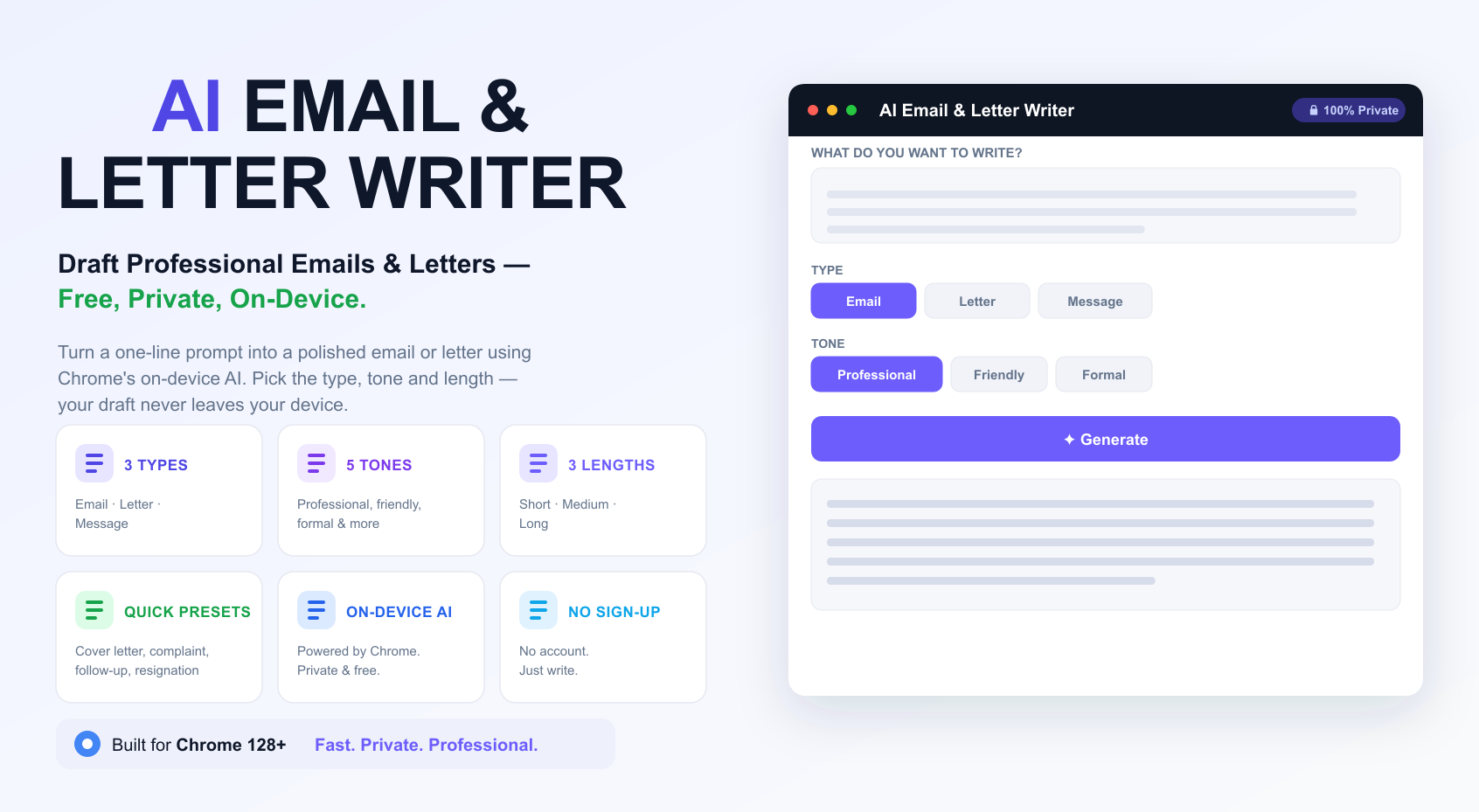
You describe what you need in plain language — for example, "ask my manager for two days off next week" — and choose three settings:
- Type — Email, Letter, or Message.
- Tone — Professional, Friendly, Formal, Apologetic, or Persuasive.
- Length — Short, Medium, or Long.
The tool also ships with one-click presets for common situations: Cover letter, Complaint, Follow-up, Thank-you note, Resignation letter, and Meeting request — each pre-fills a solid starting prompt you can edit before generating.
Why on-device AI matters for something this personal
A resignation letter, a complaint about a landlord, a cover letter with your work history — this is exactly the kind of text you do not want sitting on a third-party server. Chrome's built-in AI (Chrome 128+) runs the writing model locally, on your device. Your prompt and the generated draft stay in your browser; nothing is uploaded to write the email.
If your browser does not yet support on-device AI, the tool lets you optionally configure a Cloudflare Worker AI endpoint as a fallback — but that path does involve a network request, so it is worth knowing which mode you are in. The on-device path runs automatically whenever your browser supports it, and is what most Chrome 128+ users will get by default.
How to write an email or letter with AI (step by step)
- Open the AI Email & Letter Writer in Chrome 128 or newer.
- Pick a preset (Cover letter, Complaint, Follow-up, Thank-you note, Resignation letter, Meeting request) or write your own one-line description.
- Choose the type (Email, Letter, Message), tone, and length.
- Click Generate. A full draft appears in a few seconds, written entirely on-device.
- Copy the result and personalize names, dates, and specific details before sending.
Always review the draft before sending — the AI does not know your recipient's name, your company's specific policies, or details unique to your situation unless you include them in the prompt.
Practical use cases
- Job seekers drafting a first-pass cover letter tailored to a specific role.
- Employees writing a professional resignation letter or a meeting request without agonizing over phrasing.
- Consumers writing a firm but polite complaint email to a company or landlord.
- Anyone who wants a quick, well-structured thank-you note or follow-up message.
Choosing type, tone, and length
The three controls interact, so it helps to think about them together rather than picking defaults out of habit:
- Type sets the format — an Email includes a subject-line-appropriate opening, a Letter reads more like a formal document with a full salutation, and a Message is shorter and more conversational, suited for chat or SMS.
- Tone — Professional is a safe default for work; Formal suits legal or official correspondence; Friendly works for colleagues you know well; Apologetic is for when you are at fault and need to acknowledge it; Persuasive is for anything where you are making a case (a pitch, a negotiation, a request that needs justifying).
- Length — Short keeps it to a couple of sentences or a brief paragraph; Medium gives a few well-developed paragraphs; Long produces a thorough, detailed draft with multiple paragraphs, useful for cover letters or anything that needs to make a full case.
Why draft privately instead of using a generic chatbot
You could paste the same request into any general-purpose chatbot, and many people do. The difference here is twofold: first, this tool is purpose-built for the task — the type, tone, and length controls remove the need to describe formatting in your prompt every time. Second, because it uses Chrome's on-device AI by default, drafts involving sensitive personal or professional situations (a resignation, a complaint about an employer, a personal thank-you note) are generated locally rather than being sent to a general chat service and potentially retained as training data or conversation history.
Tips for better drafts
- Be specific in your prompt. "Ask for a refund on a damaged product ordered two weeks ago" produces a better draft than "write a complaint."
- Match tone to the relationship. Use Formal for legal or official contexts, Friendly for coworkers you know well, and Apologetic when you are the one who made the mistake.
- Edit the sign-off. The AI includes a greeting and sign-off automatically, but always replace placeholder names with the real recipient and your own name.
- Start from a preset when you can. The six built-in presets are tuned prompts — editing one is usually faster than writing your own from scratch.
Frequently asked questions
Will it sound like a form letter? Less than most templates — because it generates from your specific description rather than filling blanks in a fixed template, the result reads more natural. Still, always personalize names and specific details.
Is my draft saved anywhere? No — the prompt and draft stay in your browser session on-device; there is no account or history to manage.
Draft your email free →Related tools: AI Grammar Checker · AI Text Summarizer · Word Counter