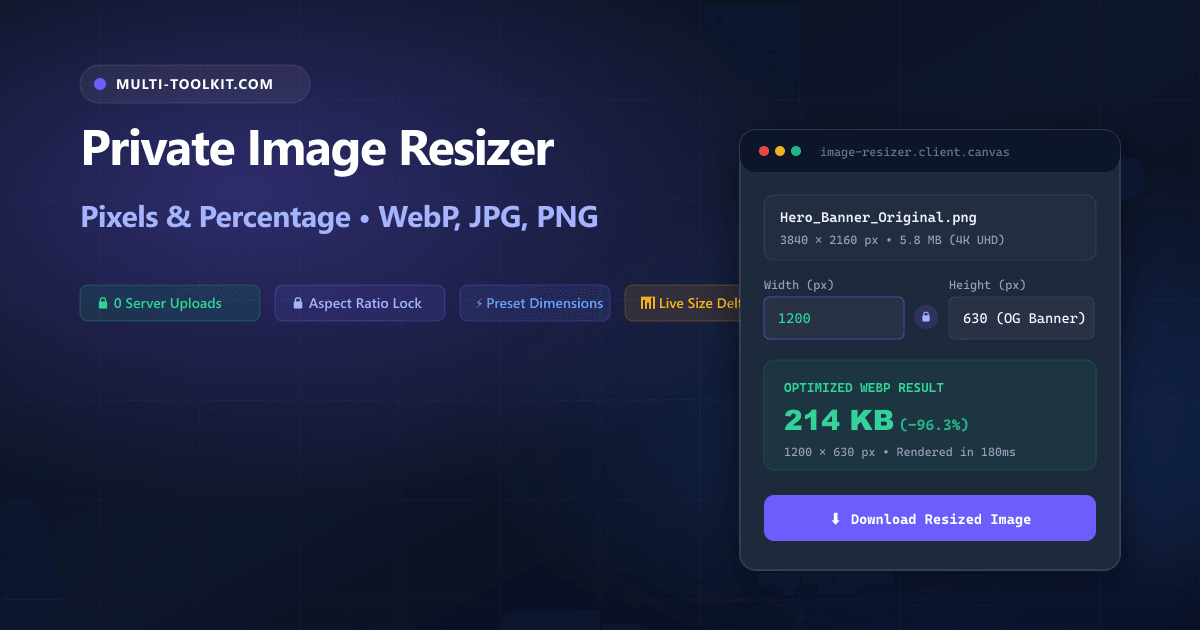
Stop uploading client photos to cloud converters: resize images by exact pixels or percentage, lock aspect ratios, and convert to modern WebP 100% inside your browser with zero limits.
Whether you are optimizing photography for an ecommerce storefront, preparing Open Graph meta banner cards for social media, scaling down large DSLR camera photos for email newsletters, or resizing avatars for user profiles, adjusting image dimensions is an indispensable daily task.
However, searching Google for a resize image online free no upload tool frequently directs professionals to legacy cloud converters that upload uncompressed image binaries to remote multi-tenant servers. Unsuspecting teams routinely transmit unreleased marketing assets, confidential client mockups, and private family photos across the public internet.
Furthermore, many cloud photo resizers enforce restrictive limits—such as capping daily free conversions, locking batch operations behind recurring subscriptions, or applying lossy compression without format control.
To eliminate these security vulnerabilities and software paywalls, the Multi-Toolkit Image Resizer provides a modern, 100% private resize photo by pixels or percentage utility. Powered by client-side HTML5 Canvas and modern browser encoders, all pixel resampling and format transformations execute directly in your device memory with zero server uploads.
The cloud resizer trap: why uploading photos to resize is a security liability
1. Data exposure on proprietary and client assets
When you upload an image to an online resizer, your uncompressed file is transferred across the network and cached on third-party cloud infrastructure. For creative agencies, ecommerce brands, and corporate marketing teams, uploading unreleased product designs or confidential client media violates client non-disclosure agreements and GDPR data governance standards.
2. Artificial subscription paywalls and daily throttles
Many commercial image editing sites restrict basic capabilities—such as locking modern WebP exports or high-resolution downloads behind $5 to $12 monthly plans, or limiting free visitors to 2 files per day.
3. Bandwidth overhead on uncompressed camera files
Modern smartphone cameras and digital DSLRs produce raw JPEG and PNG files ranging from 15 MB to 40 MB. Uploading a massive image over mobile data or slow hotel Wi-Fi just to shrink it to an 800-pixel blog graphic wastes cellular data and causes unnecessary wait times.
In-browser architecture: how Multi-Toolkit resizes images locally
Multi-Toolkit moves the entire image decoding, aspect ratio math, and canvas resampling pipeline into client-side JavaScript.
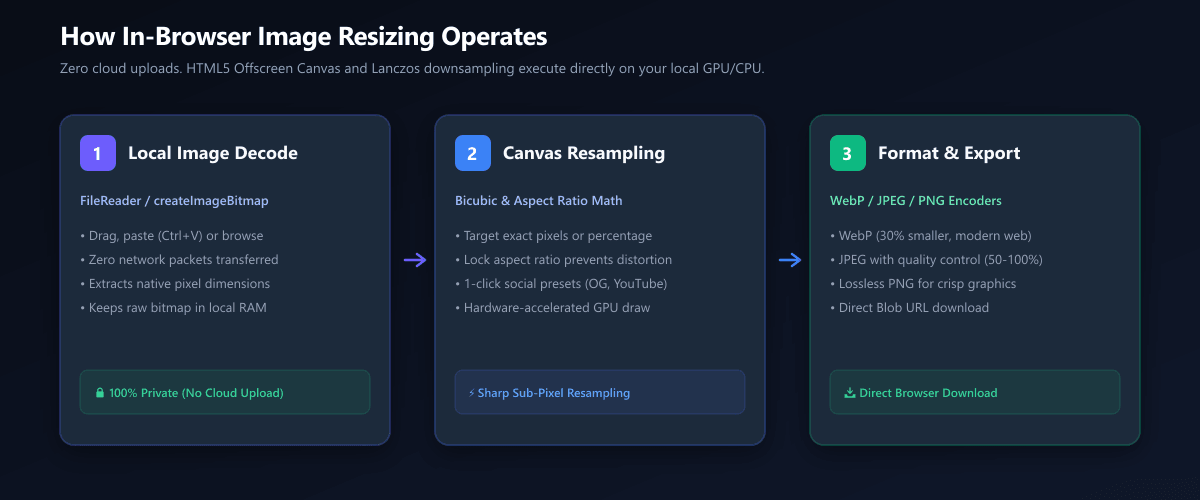
1. Local Ingestion
Images are read into browser RAM via drag-and-drop or clipboard paste (Ctrl+V). Zero network requests occur.
2. Canvas Resampling
Hardware-accelerated HTML5 <canvas> executes high-quality bicubic downsampling with aspect ratio preservation.
3. Format & Export
Serializes to WebP (30% smaller), universal JPEG, or lossless PNG with real-time size delta calculation.
Core capabilities: pixels, percentage, and social presets
Multi-Toolkit provides versatile controls for all web and print publishing scenarios:
| Mode / Preset | Dimensions / Behavior | Recommended Use Case |
|---|---|---|
| Exact Pixels Mode | Custom Width × Height with aspect ratio lock | Blog post heroes, exact CSS layouts, banners |
| Percentage Mode | Proportional scaling from 1% to 200% | Quickly downscaling 4K/8K photos (e.g. 50%) |
| Open Graph Banner | 1200 × 630 px (1.91:1 ratio) | Twitter / X cards, LinkedIn posts, Facebook links |
| YouTube Thumbnail | 1280 × 720 px (16:9 ratio) | YouTube video covers, 720p HD displays |
| Square Social / Avatar | 1080 × 1080 px (1:1 ratio) | Instagram square, team member headshots |
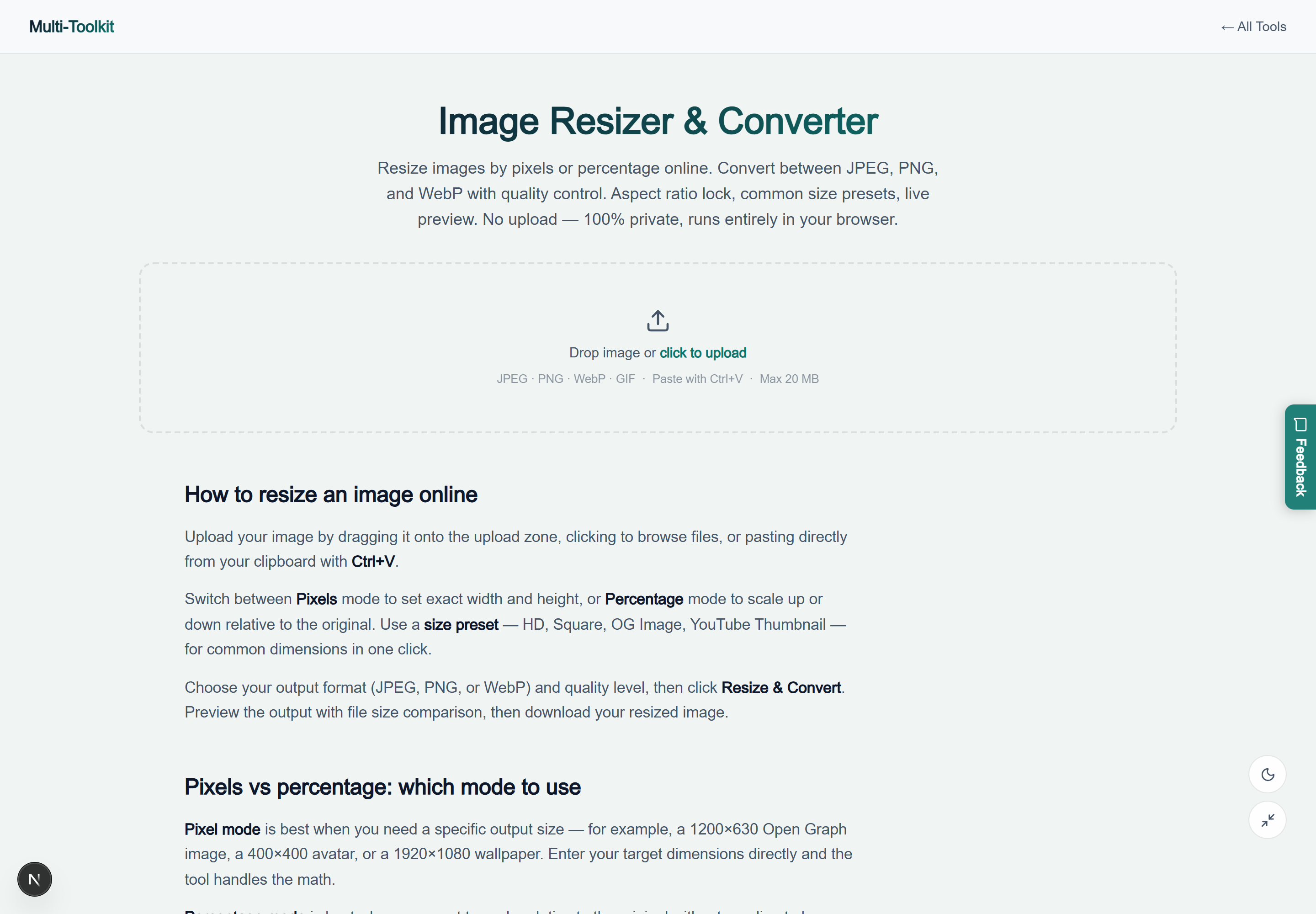
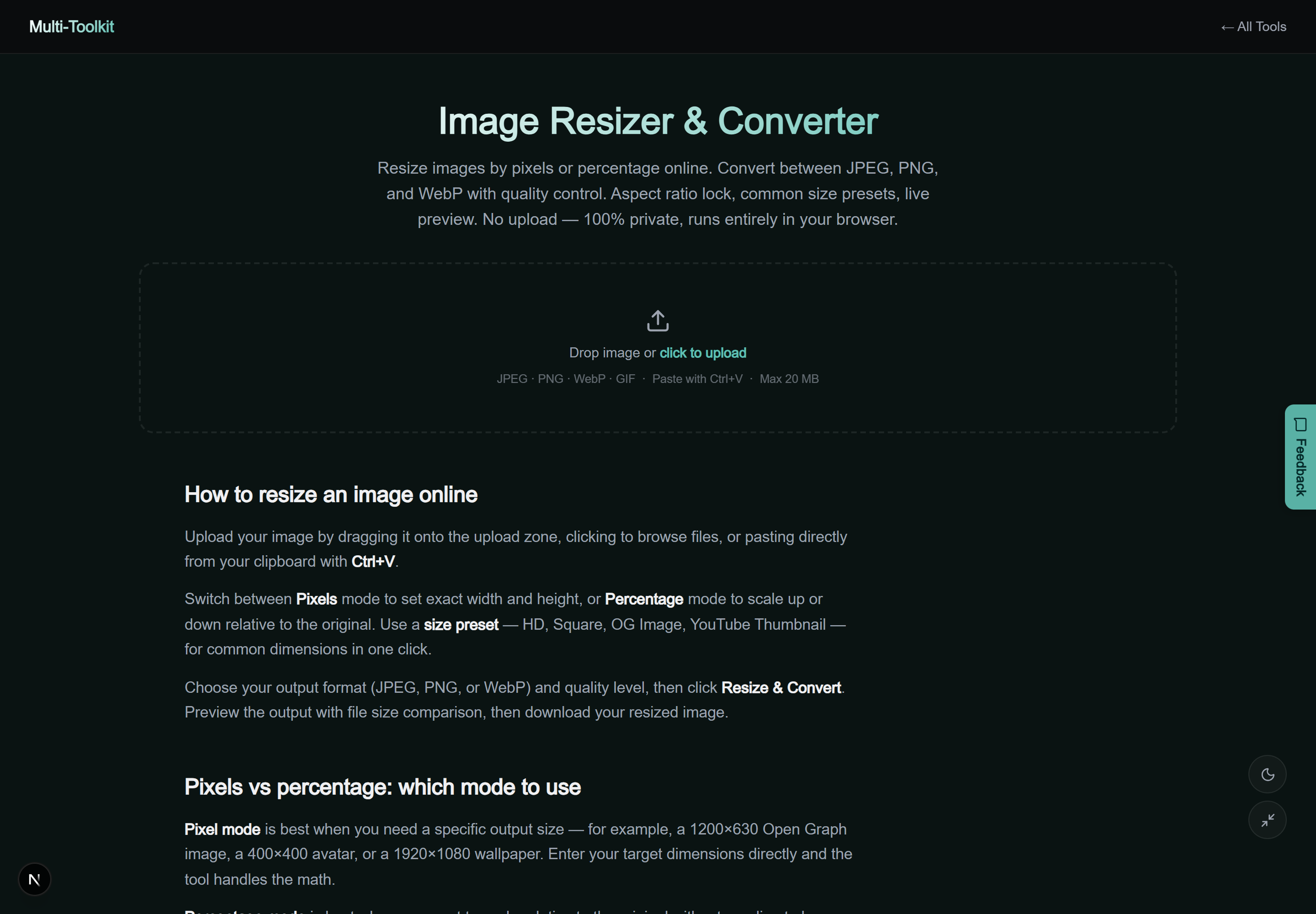
Dual-mode interface preview
Multi-Toolkit provides a responsive interface with real-time before-and-after file size calculations in both light and dark display modes:
Technical math: aspect ratio locking & geometric scaling
When resizing an image with proportional aspect ratio locking enabled, the target dimensions are governed by the geometric ratio formula:
Proportional Height Formula:
Target Height = Target Width × (Original Height ÷ Original Width)
For percentage scaling, the new pixel dimensions are calculated by multiplying the original width and height by the percentage factor and rounding to the nearest integer pixel.
Step-by-step: how to resize and convert an image
- Open Tool & Load Image: Open the Image Resizer and drag an image into the drop area, click browse, or press
Ctrl+Vto paste from clipboard. - Set Dimensions or Pick Preset: Choose Pixels mode to enter exact values, Percentage to scale proportionally, or click a preset like OG Image.
- Select Format & Quality: Select WebP for 30% smaller web images, JPEG (with adjustable quality slider), or PNG for lossless vector line art.
- Resize & Download: Click Resize & Convert. Review the live file size savings delta and click Download Image.
Comparative feature matrix: Multi-Toolkit vs. Alternatives
| Feature | Multi-Toolkit | ResizePixel | SimpleImageResizer | Canva |
|---|---|---|---|---|
| Pricing | 100% Free Forever | Free (Ad supported) | Free (Ad supported) | Subscription Account |
| Daily Usage Limits | Unlimited Usage | Unlimited | Capped batch runs | Restricted free tier |
| Client-Side Privacy | 0 Bytes Uploaded | Cloud Uploaded | Cloud Uploaded | Saved to Cloud |
| WebP Conversion | Included Free | Limited | No | Pro Feature |
| Clipboard Paste (Ctrl+V) | Supported | No | No | Supported |
Common pitfalls & troubleshooting
- Upscaling Degradation: Resizing an image beyond 100% of its native pixel dimensions (e.g. blowing up a 300-pixel thumbnail to 1920 pixels) causes noticeable pixelation. For best results, scale down from higher-resolution sources.
- Accidental Non-Proportional Distortion: Keep Maintain aspect ratio checked unless you intentionally need non-standard stretching. If you need to reframe without stretching, use the Image Cropper.
- Transparency in PNG vs. JPEG: If your source graphic contains transparent areas (e.g. logos or icons), select WebP or PNG. Converting to JPEG automatically fills transparent pixels with opaque white.
Frequently asked questions
How do I resize an image to specific pixel dimensions?
Switch to Pixels mode, enter your target width or height, and click Resize & Convert. When Maintain aspect ratio is checked, entering one dimension automatically calculates the other to prevent distortion.
How does percentage-based resizing work?
Switch to Percentage mode and adjust the slider from 1% to 200%. At 50%, width and height are halved, reducing the total pixel count by 75%. Live resulting pixel dimensions are displayed in real time.
What is the difference between resizing and cropping an image?
Resizing scales the entire image up or down to new dimensions without cutting away any content. Cropping removes outer edges to change the framing or aspect ratio. Use the Image Cropper to crop first, then resize as needed.
Which output image format should I choose?
WebP is recommended for modern web publishing, delivering 25% to 35% smaller file sizes than JPEG with support for transparency. Use JPEG for broad email and social compatibility. Use PNG for lossless vector graphics, UI screenshots, and transparency.
Does resizing an image reduce its file size?
Yes. Downscaling pixel dimensions (for instance, scaling a 4000×3000 photo to 1200×900) drastically reduces the total number of pixels, cutting file weight by up to 90%.
Are my images uploaded to an external server?
No. All image decoding, canvas resampling, and format conversions execute 100% inside your local browser memory. Your images never leave your device.
Resize, downscale, and convert images by pixels or percentage—100% in your browser with complete privacy:
Open Free Image Resizer →