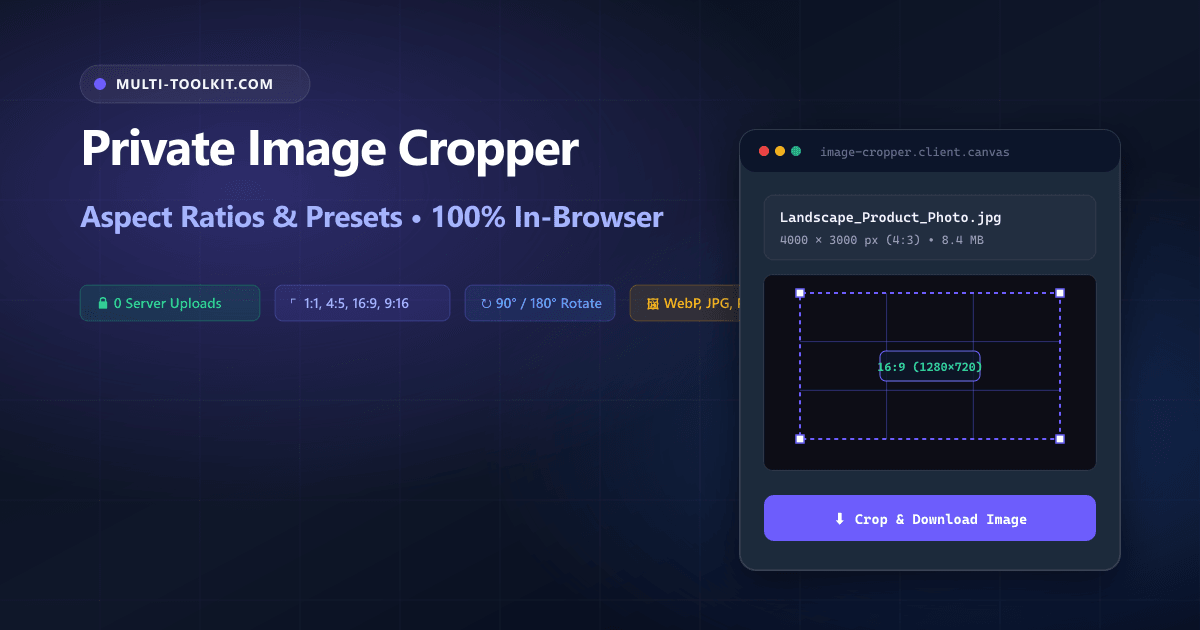
Stop uploading confidential photos to cloud editors: crop, rotate, and reframe images by social aspect ratios and export to lightweight WebP 100% inside your browser with complete privacy.
Whether you are cropping an executive portrait for a LinkedIn profile avatar, framing a product showcase for an Instagram 4:5 vertical feed, formatting a 16:9 thumbnail for a YouTube video, or extracting a custom hero graphic for a web landing page, photo cropping is one of the most frequent creative tasks for developers, designers, and marketers.
However, searching Google for a crop image online free no upload tool frequently directs users to legacy cloud photo editors that upload full-resolution image binaries to remote multi-tenant servers. Unsuspecting teams regularly transmit unreleased marketing assets, personal photography, and sensitive client media across the public internet.
Furthermore, many commercial croppers enforce restrictive limits—such as stamping exported images with intrusive brand watermarks, capping daily free crops, or locking WebP format exports behind recurring subscription plans.
To eliminate these security risks and paywalls, the Multi-Toolkit Image Cropper delivers a modern, 100% private image cropper social aspect ratios and reframing tool. Powered by client-side HTML5 Canvas and browser image decoding APIs, all coordinate slicing, angle rotations, and format conversions execute directly in your device memory with zero server uploads.
The cloud cropper trap: why uploading photos to crop is a security liability
1. Data exposure on proprietary client and personal media
When you upload an image to an online cropper, your uncompressed file is transferred across the network and cached on third-party cloud infrastructure. For creative agencies, marketing teams, and corporate enterprises, uploading unreleased product designs or confidential event photography violates client non-disclosure agreements and GDPR data governance standards.
2. Intrusive watermarks and artificial paywalls
Many commercial image editors stamp your cropped photos with unwanted brand logos or limit free visitors to a handful of crops per day before demanding $6 to $15 monthly subscriptions.
3. High upload latency on DSLR and mobile photography
Modern smartphone cameras and digital DSLRs produce raw JPEG and PNG files ranging from 15 MB to 40 MB. Uploading a massive file over mobile data just to crop a 1080-pixel square wastes cellular bandwidth and causes unnecessary delays.
In-browser architecture: how Multi-Toolkit crops images locally
Multi-Toolkit moves the entire image decoding, coordinate calculation, and canvas slicing pipeline directly into client-side JavaScript.
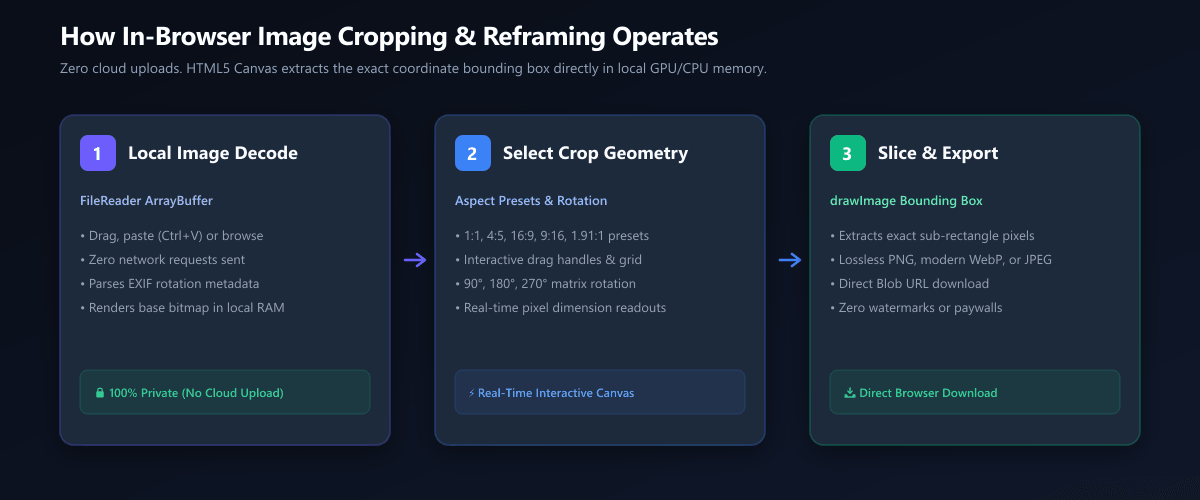
1. Local Ingestion
Images are read into browser RAM via drag-and-drop or clipboard paste (Ctrl+V). Zero network requests occur.
2. Canvas Slicing
Hardware-accelerated HTML5 <canvas> slices exact sub-pixel coordinates with real-time aspect ratio constraints.
3. Multi-Format Export
Serializes to WebP (30% smaller), universal JPEG, or lossless PNG with live dimension and file size calculations.
Core capabilities: aspect ratio presets and angle rotation
Multi-Toolkit provides versatile controls for all social media channels, display banners, and digital marketing formats:
| Preset / Mode | Aspect Ratio | Recommended Platform & Use Case |
|---|---|---|
| 1:1 Square | 1:1 (e.g. 1080 × 1080 px) | Instagram square posts, profile headshots, product catalogs |
| 4:5 Portrait | 4:5 (e.g. 1080 × 1350 px) | Instagram vertical feed (maximum screen area without cropping) |
| 16:9 Widescreen | 16:9 (e.g. 1280 × 720 px) | YouTube thumbnails, Twitter/X landscape, slide presentations |
| 9:16 Vertical | 9:16 (e.g. 1080 × 1920 px) | Instagram Stories, TikTok videos, YouTube Shorts, Reels |
| 1.91:1 Open Graph | 1.91:1 (e.g. 1200 × 630 px) | LinkedIn post banners, Facebook share cards, SEO Open Graph |
| 4:3 & 3:2 Standard | 4:3 / 3:2 | Classic photography, digital prints, tablet displays |
| Freeform Mode | Custom Unconstrained | Arbitrary rectangle selection, custom UI banners |
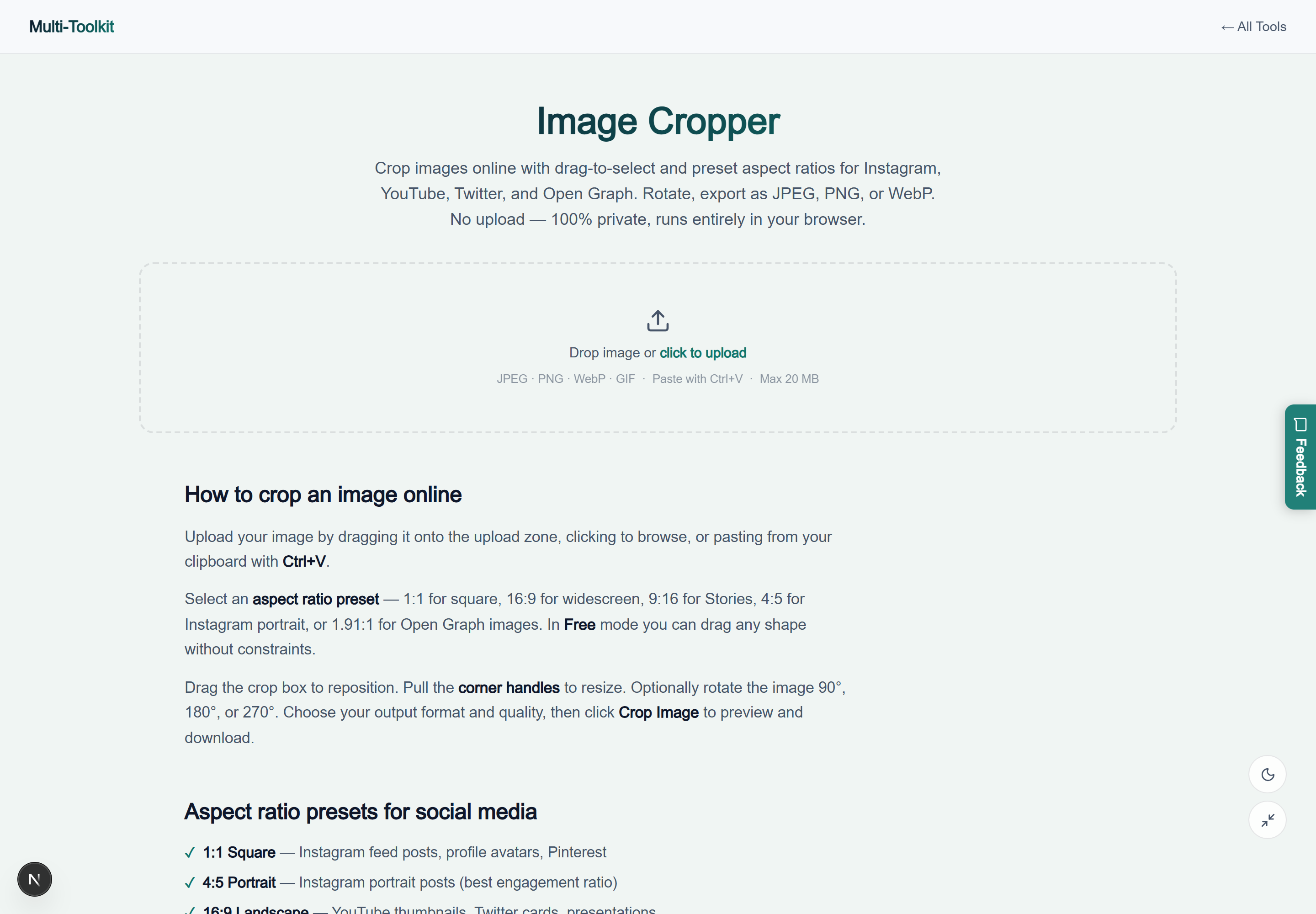
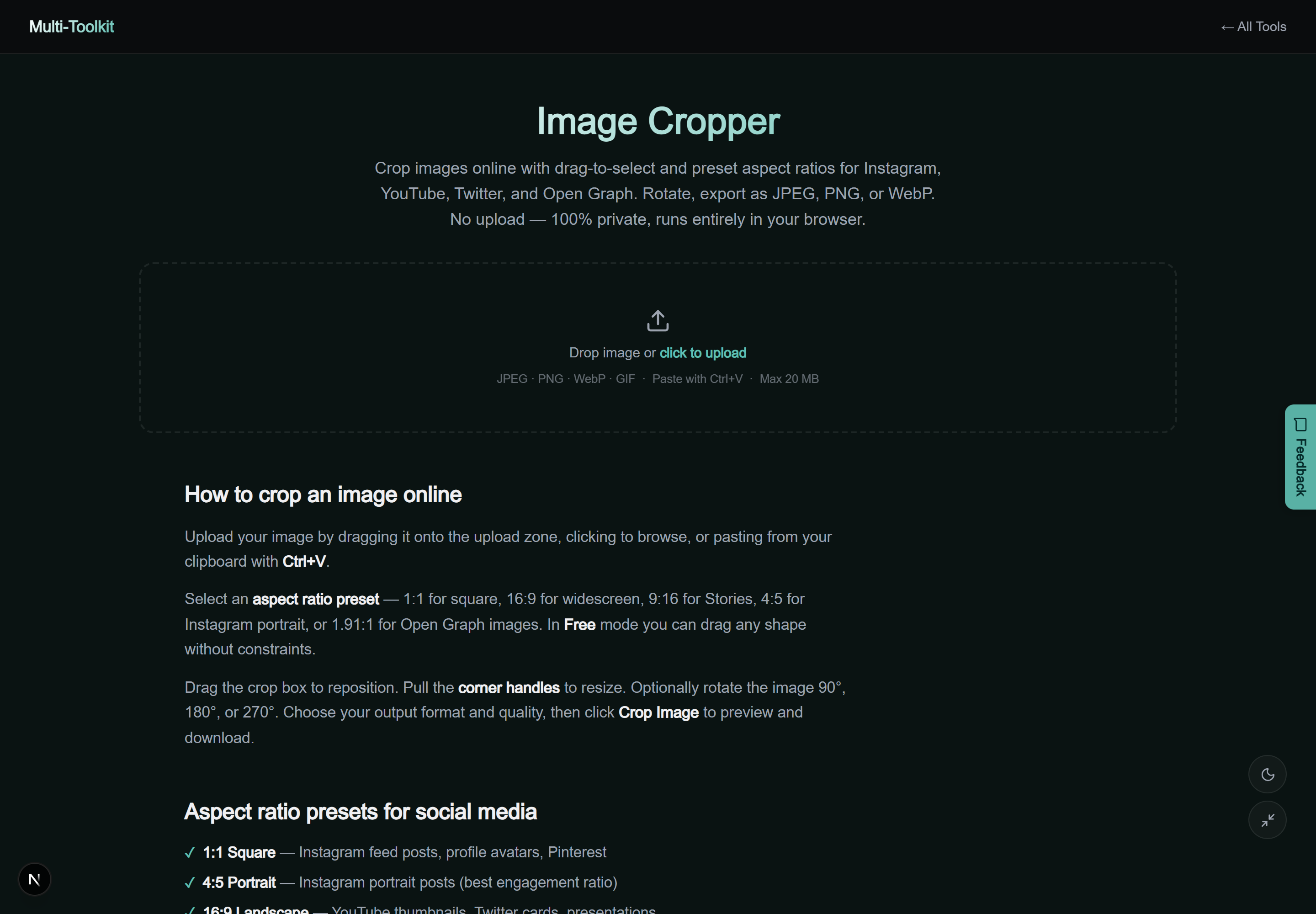
Dual-mode interface preview
Multi-Toolkit provides a responsive interface with interactive drag handles, rule-of-thirds grid guides, and live dimension badges across both light and dark display themes:
Technical math: HTML5 Canvas sub-rectangle slicing
When cropping an image, the browser utilizes the 9-parameter variant of CanvasRenderingContext2D.drawImage() to extract an exact sub-region from the source bitmap:
Canvas Slicing Method:
ctx.drawImage(sourceImage, sx, sy, sWidth, sHeight, 0, 0, dWidth, dHeight)
Where sx and sy represent the top-left source coordinates on the original image, sWidth and sHeight define the cropped rectangle, and dWidth and dHeight represent the destination canvas output dimensions.
Step-by-step: how to crop and reframe an image
- Open Tool & Load Image: Open the Image Cropper and drag an image into the drop area, click browse, or press
Ctrl+Vto paste from clipboard. - Select Aspect Ratio or Freeform: Choose an aspect ratio preset such as 1:1 for Instagram square, 4:5 for portrait, 16:9 for YouTube, or select Freeform for custom dimensions.
- Adjust Framing & Rotate: Drag the crop bounding box across your focal point or resize the corner handles. If your photo is sideways, click Rotate 90° to orient it correctly.
- Select Format & Download: Select WebP (recommended for web performance), JPEG (with adjustable quality slider), or PNG. Click Crop & Download.
Comparative feature matrix: Multi-Toolkit vs. Alternatives
| Feature | Multi-Toolkit | ILoveIMG | Croppola | Canva |
|---|---|---|---|---|
| Pricing | 100% Free Forever | Free tier / Subscription | Ad supported | Subscription Account |
| Client-Side Privacy | 0 Bytes Uploaded | Cloud Uploaded | Cloud Uploaded | Saved to Cloud |
| Watermarks | None (Zero Watermarks) | None | None | Requires Account |
| WebP Export | Included Free | Limited | No | Pro Feature |
| Clipboard Paste (Ctrl+V) | Supported | No | No | Supported |
Common pitfalls & troubleshooting
- Aspect Ratio Mismatch: When preparing graphics for Instagram feed posts, always select 4:5 Portrait or 1:1 Square. Using 16:9 on an Instagram feed will result in unwanted letterboxing.
- Rotation Before Cropping: Always rotate your image to the correct orientation before adjusting your crop bounding box. Rotating after adjusting the box will reset the selection to encompass the rotated bounds.
- Transparency in PNG vs. JPEG: If your original image has a transparent background (such as a logo or transparent icon), export in WebP or PNG. Exporting to JPEG fills transparent regions with solid white.
Frequently asked questions
How do I crop an image to a specific social media aspect ratio?
Upload or paste your photo, then click any of the aspect ratio presets: 1:1 (Square), 4:5 (Instagram Portrait), 16:9 (YouTube), 9:16 (Stories/Reels/TikTok), or 1.91:1 (Open Graph). Move or resize the crop box and click Crop & Download.
Can I crop an image to custom dimensions without aspect constraints?
Yes. Select the Freeform mode preset. You can freely drag each corner and side handle to outline any exact rectangle without being constrained by fixed proportions.
How does rotation work before cropping?
Click the Rotate 90° button to orient your photo clockwise. The coordinate matrix recalculates instantly so your crop bounding box stays perfectly aligned.
Which output image format should I choose when cropping?
WebP provides the smallest file size (25%–35% smaller than JPEG) while maintaining sharp quality and transparency. Choose JPEG for maximum compatibility or PNG for lossless screenshot and graphic clarity.
Are my photos uploaded to any external server during cropping?
No. All canvas slicing, coordinate transformations, and format encoding execute 100% locally in your browser memory. Your media never leaves your device.
Is there a limit on how many images I can crop or any watermark?
No. Multi-Toolkit is completely free and unlimited. No account registration is required, and exported photos are never watermarked.
Crop, rotate, and reframe images by social aspect ratios—100% in your browser with complete privacy:
Open Free Image Cropper →